Claude App Tutorial: Build Your First AI App with Python SDK
Focus keyword: Claude app tutorial
If you’ve been curious about building apps with Claude AI but don’t know where to start, you’re in the right place. This Claude app tutorial walks you through creating your first working Claude application using Python—from setting up your environment to running a complete AI-powered script in under 30 minutes.
By the end of this tutorial, you’ll have a functioning Claude app running on your machine, and you’ll understand how to customize it for your own projects.
▶Previous tutorial : Getting Started with Client SDKs: A Beginner’s Guide for Python, TS, Go, Java & More
What You’ll Build (and Why Claude?)
Claude is Anthropic’s family of large language models (LLMs) known for their strong reasoning abilities and helpful responses. In this tutorial, you’ll build a Claude AI app beginner can understand: a simple Python script that sends a message to Claude via the Anthropic API and displays the AI’s response.
Unlike using Claude through a web interface, building with the API gives you complete control—you can integrate Claude into automation workflows, build custom chatbots, process documents, or create AI-powered tools tailored to your needs.
Who This Tutorial Is For
This tutorial is designed for:
- Developers with basic Python knowledge who want to add AI capabilities to their projects
- No-code builders transitioning to API-based workflows
- Tech-savvy beginners exploring practical AI integration
You should be comfortable with basic Python syntax and running commands in a terminal. If you’ve written a Python script before, you’re ready.
Prerequisites: What You Need Before Starting
For the latest official details, see Some dependencies currently cause installation issues on Python 3.13.
For the latest official details, see Anthropic Python SDK requires Python 3.9+.
Before diving into the Anthropic Python SDK setup, make sure you have:
System Requirements
- Python 3.9 or newer installed on your system (the current Anthropic Python SDK requires Python 3.9+)
- A terminal or command prompt
- A text editor or IDE (VS Code, PyCharm, or even a simple text editor works)
Note for Python 3.13 users: Some dependencies currently cause installation issues on Python 3.13. Stick with Python 3.9 through 3.12 for the smoothest experience.
Account and API Access
- An Anthropic account (sign up at the Anthropic website if you don’t have one)
- An API key from the Anthropic Console
- Understanding that API usage has costs (check the official Anthropic pricing page for current rates—pricing varies by model and usage, and new accounts may receive trial credits)
Security reminder: Never share your API key publicly or commit it to version control. We’ll show you how to handle it safely.
Getting Your Anthropic API Key
To use Claude through the Python SDK, you need an API key:
- Navigate to the Anthropic Console in your web browser
- Create an account or sign in
- Look for the API keys section (typically in settings or developer options)
- Generate a new API key
- Copy the key immediately—you may not be able to view it again
Store this key safely. You’ll use it in the next section.
Setting Up Your Python Environment
For the latest official details, see pip install anthropic.
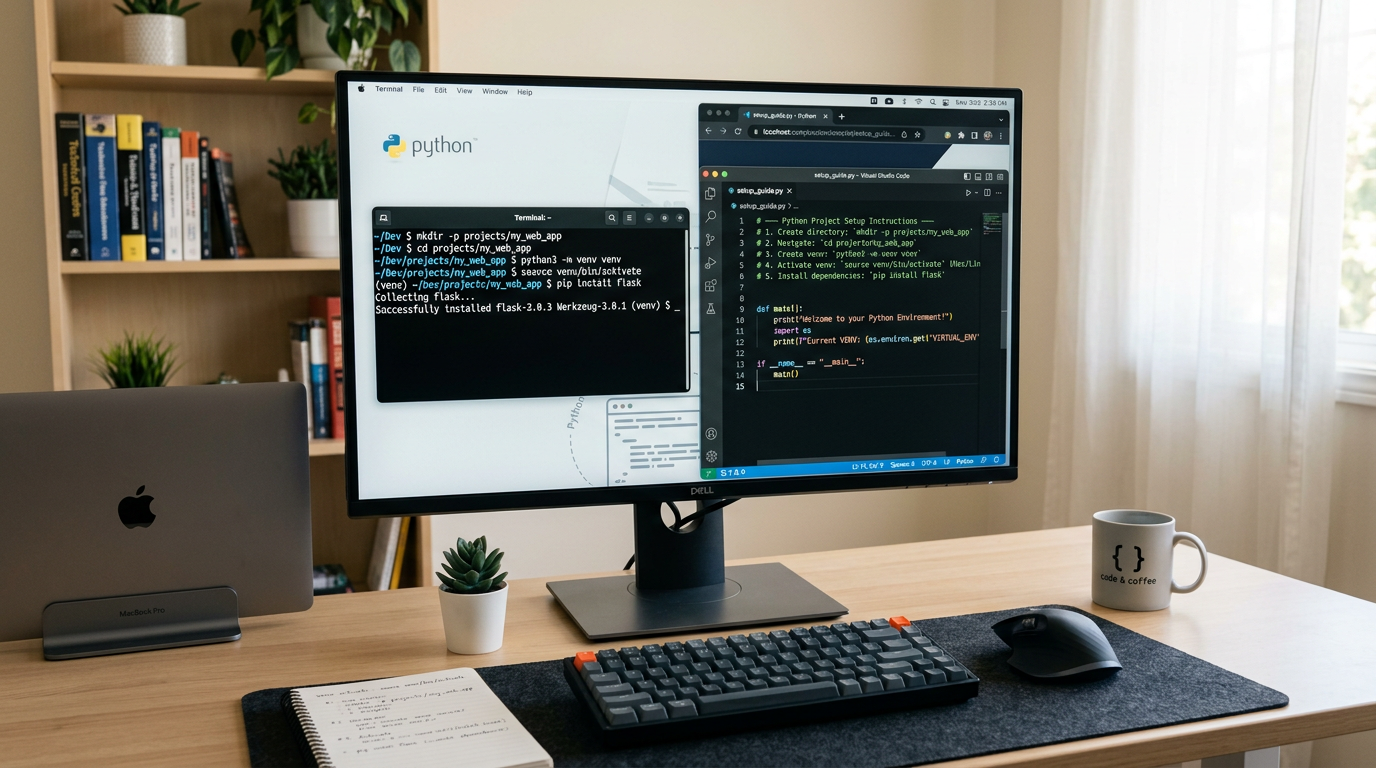
Let’s create a clean workspace for your Claude app and install the necessary tools.
Step 1: Create a Project Directory
Open your terminal and run:
mkdir my-claude-app
cd my-claude-app
Step 2: Set Up a Virtual Environment (Recommended)
Virtual environments keep your project dependencies isolated:
# On macOS/Linux
python3 -m venv venv
source venv/bin/activate

# On Windows
python -m venv venv
venv\Scripts\activate
When activated, you’ll see (venv) in your terminal prompt.
Step 3: Install the Anthropic Python SDK
With your virtual environment active, install the official SDK:
pip install anthropicThis command installs the anthropic package, which is the official Python client library for the Anthropic API.
Verify installation:
python -c "import anthropic; print(anthropic.__version__)"You should see a version number printed (e.g., 0.25.0 or similar).
Configuring Secure API Authentication
Never hardcode your API key directly in your script. Instead, use environment variables—a standard security practice.
Create a .env File
In your project directory, create a file named .env:
touch .envOpen .env in your text editor and add your API key:
ANTHROPIC_API_KEY=your_actual_api_key_hereReplace your_actual_api_key_here with the key you copied from the Anthropic Console.
Protect Your API Key
Create a .gitignore file to prevent accidentally committing your key:
.env
venv/
__pycache__/
Loading Environment Variables in Python
For this tutorial, we’ll use Python’s built-in os module to read the environment variable. In your terminal, set the variable before running your script:
# On macOS/Linux
export ANTHROPIC_API_KEY="your_actual_api_key_here"

# On Windows (Command Prompt)
set ANTHROPIC_API_KEY=your_actual_api_key_here

# On Windows (PowerShell)
$env:ANTHROPIC_API_KEY="your_actual_api_key_here"
For production projects, consider using the python-dotenv package to automatically load .env files.
Writing Your First Claude App
Now for the exciting part—let’s write the actual Python Claude integration guide code.
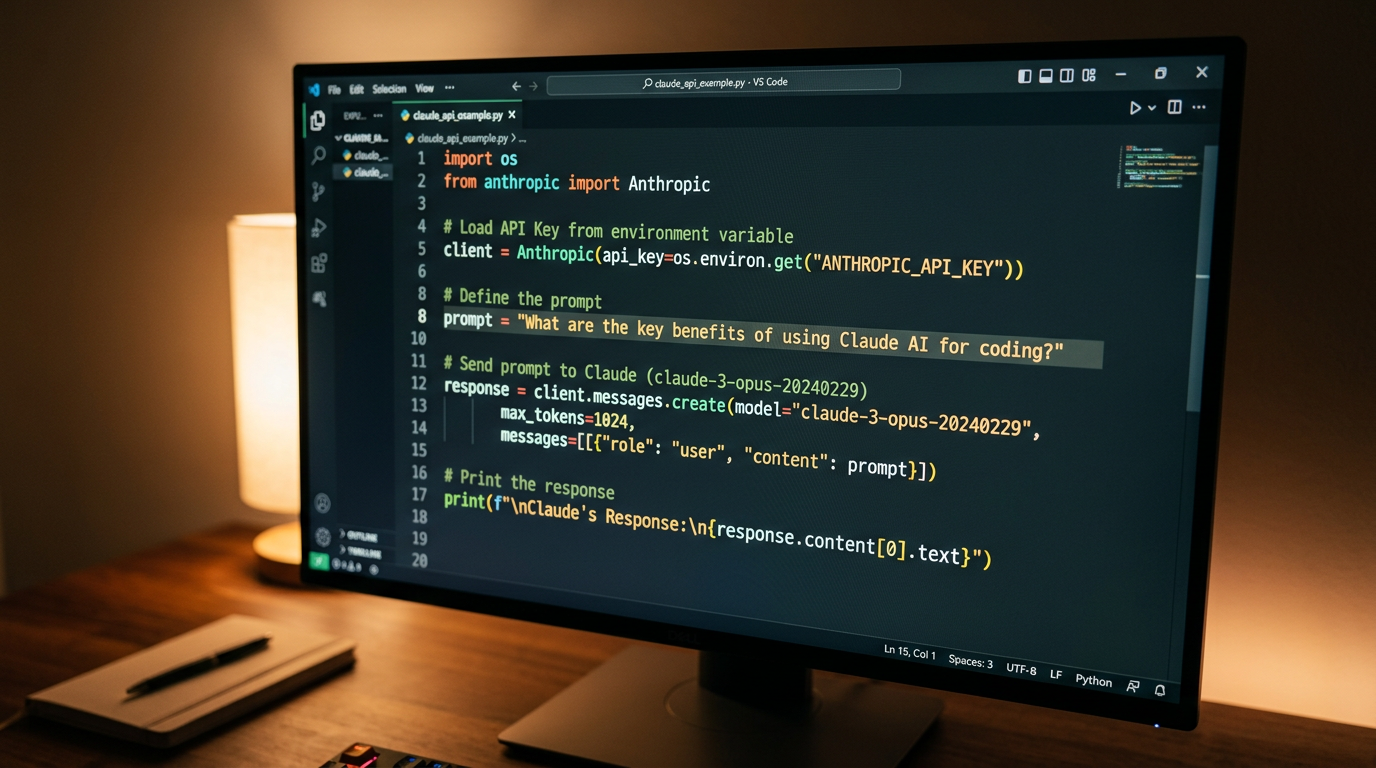
Create a new file called claude_app.py in your project directory:
import os
from anthropic import Anthropic

# Initialize the Anthropic client
client = Anthropic(
    api_key=os.environ.get("ANTHROPIC_API_KEY")
)

# Send a message to Claude
message = client.messages.create(
    model="claude-3-5-sonnet-20241022",
    max_tokens=1024,
    messages=[
        {"role": "user", "content": "Hello, Claude! Explain what you can help me with in one sentence."}
    ]
)

# Print the response
print(message.content[0].text)
Understanding the Code
Let’s break down what each part does:
- Import statements: We import
osto read environment variables andAnthropicfrom the SDK - Client initialization:
Anthropic()creates a client that handles API communication. It automatically readsANTHROPIC_API_KEYfrom your environment - messages.create(): This is the core API call that sends your message to Claude
model: Specifies which Claude model to use (before publishing, verify current model names from the official API reference)max_tokens: Limits the length of Claude’s responsemessages: An array containing your conversation—here, one user message
- Response handling: The response object contains Claude’s reply in
message.content[0].text
Running and Testing Your Claude App
Make sure your ANTHROPIC_API_KEY environment variable is set, then run:
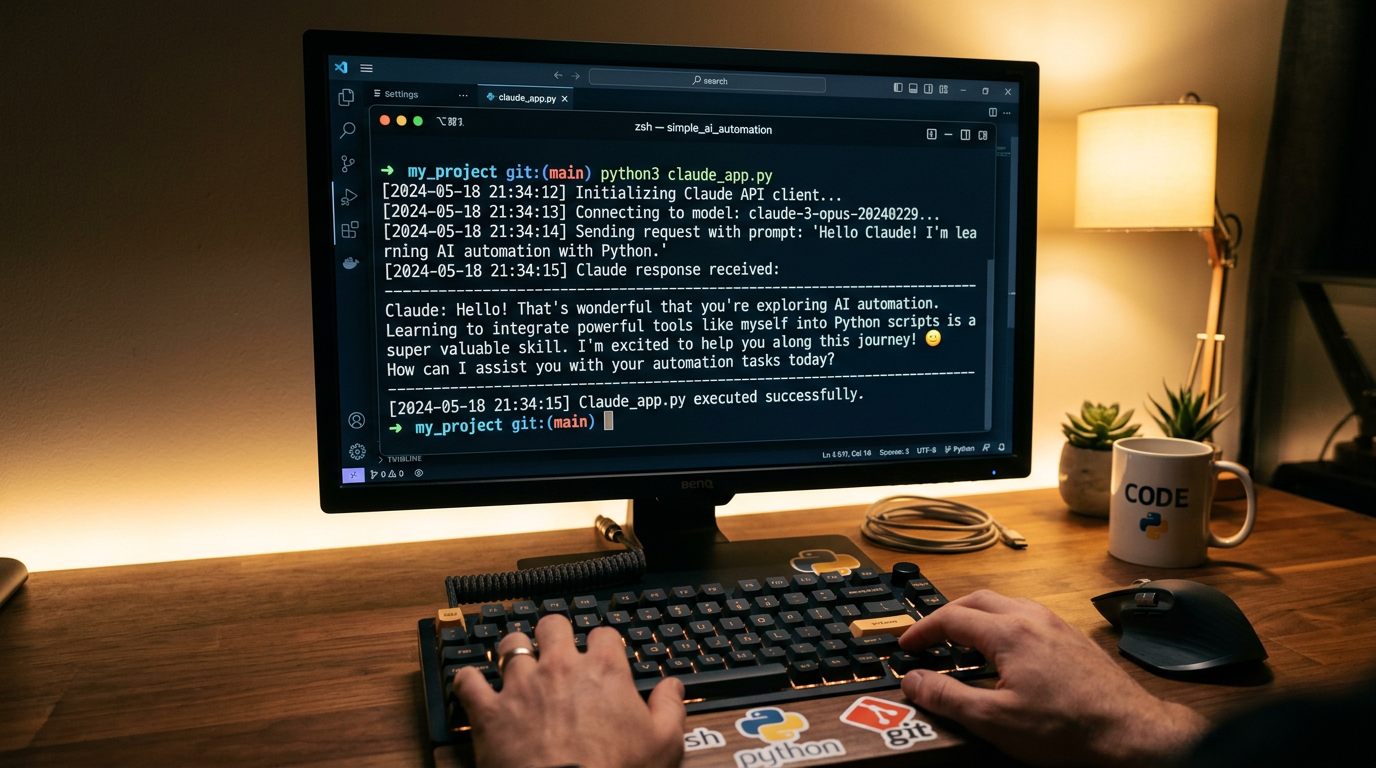
python claude_app.pyExpected output: You should see Claude’s response printed to your terminal—something like:
I can help you with a wide range of tasks including writing, analysis, math, coding, research, and answering questions across many domains.If you see this, congratulations! You’ve successfully built and run your first Claude API usage Python application.
Common Errors and How to Fix Them
Authentication Error
Error message: AuthenticationError or 401 Unauthorized
Fix:
- Verify your API key is correct
- Ensure the environment variable is set in your current terminal session
- Check that you haven’t included extra spaces or quotes in the key
Module Not Found Error
Error message: ModuleNotFoundError: No module named 'anthropic'
Fix:
- Ensure your virtual environment is activated
- Run
pip install anthropicagain - Verify you’re using the correct Python interpreter
Rate Limit Error
Error message: RateLimitError or 429 Too Many Requests
Fix:
- Wait a moment before trying again
- Check your account’s rate limits in the Anthropic Console
- For new accounts, rate limits may be more restrictive until usage history is established
API Error or Timeout
Error message: Various API errors or long waits
Fix:
- Check your internet connection
- Verify Anthropic’s API status (occasional outages happen)
- Try reducing
max_tokensif responses are timing out
Customizing Your Claude App
Now that you have a working app, let’s explore how to customize it.
Using Different Models
Before publishing, verify current model names from the official Anthropic API documentation. Model names and availability change over time, so always check the latest reference. Typically, you might see models like claude-3-opus, claude-3-sonnet, or claude-3-haiku, each with different speed and capability trade-offs.
Adjusting Response Length
Control how long Claude’s responses can be with max_tokens:
message = client.messages.create(
    model="claude-3-5-sonnet-20241022",
    max_tokens=500,  # Shorter responses
    messages=[...]
)
Adding a System Prompt
System prompts guide Claude’s behavior and tone:
message = client.messages.create(
    model="claude-3-5-sonnet-20241022",
    max_tokens=1024,
    system="You are a helpful coding assistant. Keep responses concise and include code examples.",
    messages=[
        {"role": "user", "content": "How do I read a JSON file in Python?"}
    ]
)
Making It Interactive
Transform your script into a simple chatbot:
import os
from anthropic import Anthropic

client = Anthropic(api_key=os.environ.get("ANTHROPIC_API_KEY"))

print("Chat with Claude (type 'quit' to exit)")

while True:
    user_input = input("\nYou: ")

    if user_input.lower() == 'quit':
        break

    message = client.messages.create(
        model="claude-3-5-sonnet-20241022",
        max_tokens=1024,
        messages=[
            {"role": "user", "content": user_input}
        ]
    )

    print(f"\nClaude: {message.content[0].text}")
This simple loop lets you have a back-and-forth conversation with Claude.
Common Beginner Mistakes to Avoid
- Hardcoding API keys: Always use environment variables, never paste keys directly in code you might share
- Forgetting token limits: Each API call has costs based on tokens used—set reasonable
max_tokensvalues - Not handling errors: Add try-except blocks around API calls for production code
- Ignoring model differences: Different Claude models have different capabilities and costs—choose appropriately
- Skipping virtual environments: Virtual environments prevent dependency conflicts as your projects grow
Frequently Asked Questions
Do I need to pay to use Claude’s API?
API usage is billed based on the number of tokens processed. Check the official Anthropic pricing page for current rates and to see if trial credits are available for new accounts. Pricing varies by model.
Can I use Claude API for commercial projects?
Yes, the Anthropic API is designed for both personal and commercial use. Review Anthropic’s terms of service for any specific restrictions or requirements.
Which Claude model should I use as a beginner?
Start with a mid-tier model that balances capability and cost. Before finalizing your choice, check the official model documentation for current recommendations, as model availability and performance change over time.
How do I add conversation history to my app?
The messages array can contain multiple exchanges. Add previous messages with alternating “user” and “assistant” roles to give Claude context about the conversation.
Why is my first API call slow?
Initial calls may take a few seconds as connections are established. Subsequent calls are typically faster. Response time also depends on the model and the length of the response.
Next Steps: Building on Your Foundation
You now have a working getting started with Claude AI application! Here’s what to explore next:
- Streaming responses: Learn to stream Claude’s responses word-by-word for real-time display
- Conversation memory: Build a chatbot that remembers previous exchanges
- Function calling: Enable Claude to use tools and call functions in your code
- Document processing: Upload and analyze documents with Claude
- Integration with n8n: Connect your Claude app to automation workflows
The Anthropic SDK supports both synchronous and asynchronous patterns, so you can scale your apps as needed.
Conclusion: You’re Ready to Build Claude Apps
This Claude app tutorial has taken you from zero to a functioning AI application using the Anthropic Python SDK. You’ve learned Anthropic Python SDK setup, authentication best practices, and how to make your first successful API calls.
The code you wrote today is the foundation for countless AI-powered projects—chatbots, content generators, code assistants, research tools, and more. Start experimenting with different prompts, models, and parameters to discover what Claude can do for your specific use case.
Before building production applications, always check the latest official documentation for current model names, API changes, and best practices. The AI landscape evolves quickly, and staying current with official resources ensures your apps remain reliable.
Ready to build something amazing? Your first Claude app is just the beginning.
Enjoyed this article?