
State Management in Chatbots: A Beginner’s Guide with n8n and Docker
Focus keyword: state management in chatbots
Imagine asking a chatbot your name, then two messages later asking “What’s my name?” only to get “I don’t know” as a response. Frustrating, right? This is the problem with state management in chatbots—without it, your bot forgets everything between messages.
In this tutorial, you’ll learn how to build a chatbot that actually remembers conversation context using n8n (a visual workflow automation tool) and Docker. By the end, you’ll have a working multi-turn chatbot that can maintain conversation state across multiple exchanges, creating natural, contextual interactions instead of repetitive question-answer loops.
Previous Tutorial : Messages API Tutorial: A Beginner’s Guide to Request and Response Basics
What Is State Management in Chatbots?
State is simply the information your chatbot remembers between messages. This includes:
- Previous user messages
- Bot responses
- User preferences or details (name, choices, context)
- Current conversation stage (collecting info, confirming, completed)
Single-turn conversations treat each message independently—like asking a magic 8-ball questions. Multi-turn conversations maintain context, enabling natural dialogs where the bot understands references to earlier parts of the conversation.
Without proper state management, you can’t build chatbots that:
- Collect information across multiple questions
- Provide personalized responses based on earlier inputs
- Guide users through multi-step processes
- Create natural, human-like conversations
The challenge: chatbots typically run in stateless environments (like Docker containers) that don’t automatically preserve data between requests or restarts.
Who This Tutorial Is For
This guide is designed for:
- Developers exploring no-code AI automation alternatives
- No-code builders wanting to add intelligent chatbots to their projects
- Tech-savvy beginners comfortable with basic Docker concepts
You should have:
- Basic familiarity with Docker (what containers are, how to run commands)
- Understanding of APIs and webhooks (helpful but not required)
- An OpenAI, Anthropic, or similar LLM API key (we’ll use this for chat responses)
Before diving in, verify the latest setup instructions in official n8n documentation, as deployment methods can evolve.
Setting Up Your Environment
You’ll need three components:
- Docker installed on your system
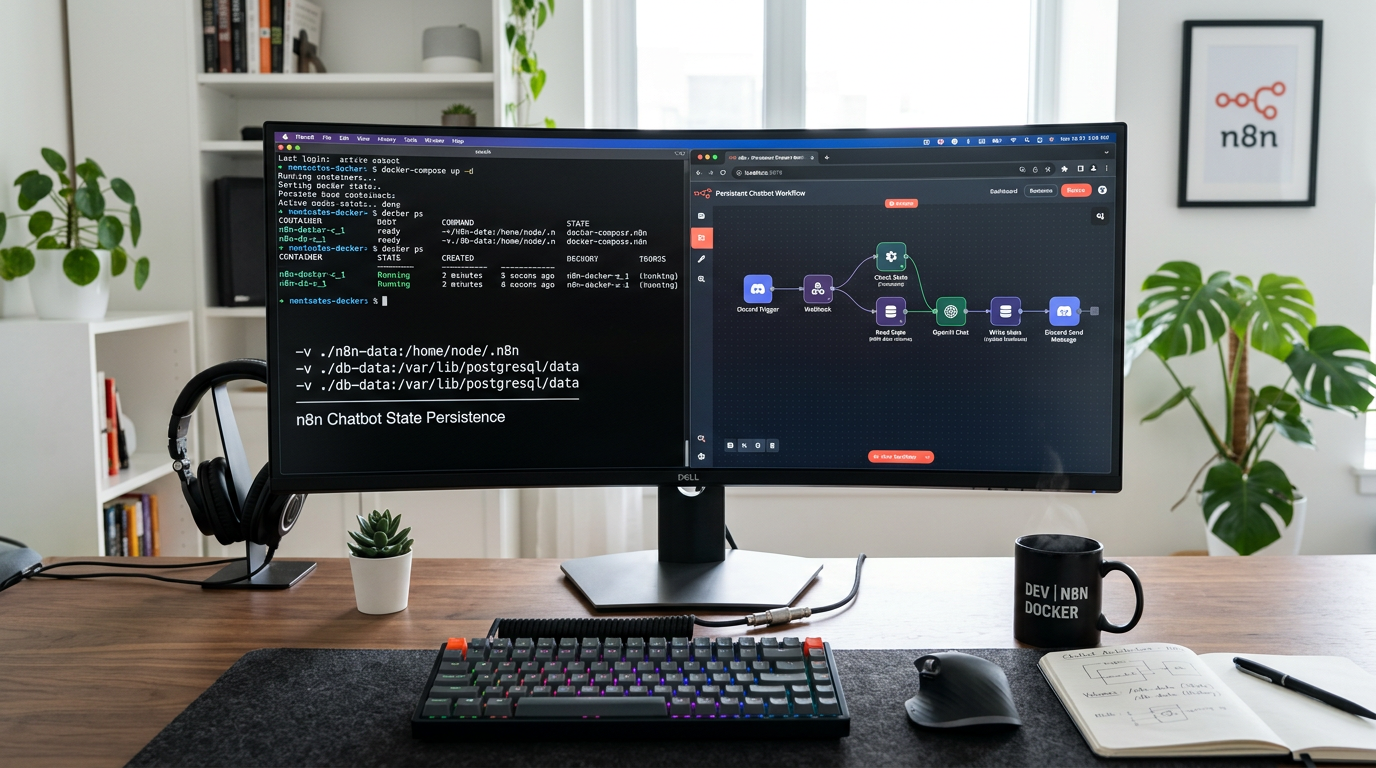
- n8n running in a Docker container
- An LLM API key (OpenAI, Anthropic, or another provider)
Installing n8n with Docker
The self-hosted version of n8n is free and runs easily in Docker. Check the official n8n Docker documentation for the most current installation method, but a typical setup looks like this:
docker run -it --rm \
  --name n8n \
  -p 5678:5678 \
  -v ~/.n8n:/home/node/.n8n \
  n8nio/n8n
The -v ~/.n8n:/home/node/.n8n flag creates a Docker volume that persists n8n’s data (including workflow configurations and stored variables) even when the container restarts. This is critical for managing conversation state with Docker—without it, restarting the container wipes all stored information.
Access n8n at http://localhost:5678 and complete the initial setup.
Building a Stateless Chatbot (The Problem)
Let’s start by building a simple chatbot that demonstrates the problem.
Create a new workflow in n8n with these nodes:
- Webhook node (triggers when a message arrives)
- OpenAI or LLM node (processes the message)
- Respond to Webhook node (sends the reply)
Configure the webhook to accept POST requests with a message field. Connect it to your LLM node, passing {{ $json.message }} as the user input. Connect the LLM output to the response node.
Test it by sending:
POST http://localhost:5678/webhook/chatbot
{"message": "My name is Alex"}
Then send:
POST http://localhost:5678/webhook/chatbot
{"message": "What's my name?"}
The bot won’t remember “Alex” because each request is processed independently—this is a stateless chatbot.
Implementing Conversation State in n8n
Now let’s add beginner chatbot state handling to create a functional n8n chatbot workflow with memory.
Step 1: Add Session Tracking
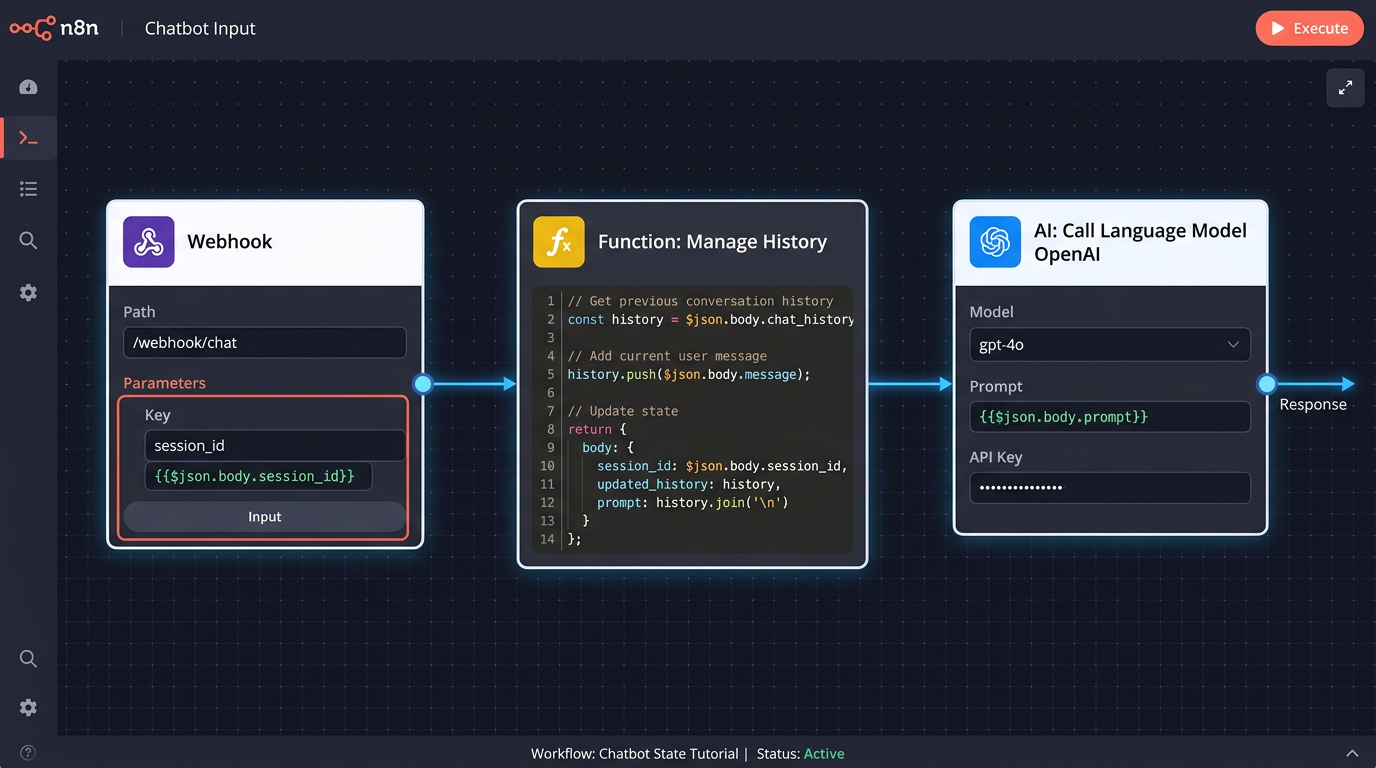
First, we need to identify individual users. Modify your webhook to include a sessionId:
{
  "sessionId": "user123",
  "message": "My name is Alex"
}
In a real application, this might come from a chat platform’s user ID, a browser session cookie, or a generated token.
Step 2: Store Conversation History
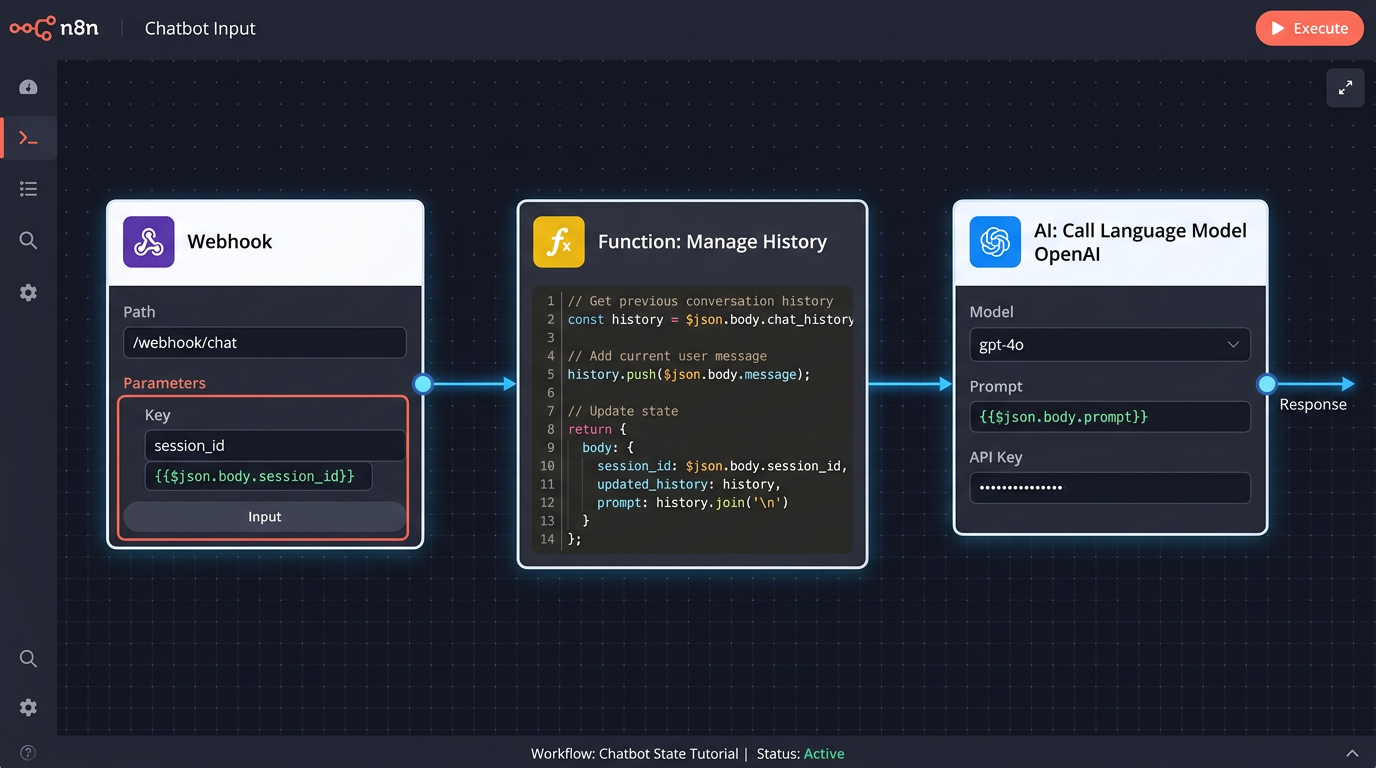
n8n workflows can maintain state using workflow variables or external storage. For this multi-turn conversation AI tutorial, we’ll use an approach that works with n8n’s architecture.
Add a Function node or Code node after your webhook to manage conversation history:
// Get session ID from incoming message
const sessionId = $input.item.json.sessionId;
const userMessage = $input.item.json.message;

// Initialize conversation storage (this example uses workflow static data)
// In production, use a database or Redis
const conversations = $workflow.staticData.conversations || {};

// Get or create conversation history for this session
if (!conversations[sessionId]) {
  conversations[sessionId] = [];
}

// Add user message to history
conversations[sessionId].push({
  role: "user",
  content: userMessage
});

// Keep only last 10 messages to manage context window
if (conversations[sessionId].length > 10) {
  conversations[sessionId] = conversations[sessionId].slice(-10);
}

// Save back to static data
$workflow.staticData.conversations = conversations;

// Return session history for LLM
return {
  sessionId: sessionId,
  messages: conversations[sessionId]
};
Step 3: Pass History to Your LLM
Modify your LLM node to accept the full message history instead of just the current message. Most LLM APIs (OpenAI, Anthropic) accept an array of messages:
{
  "messages": [
    {"role": "user", "content": "My name is Alex"},
    {"role": "assistant", "content": "Nice to meet you, Alex!"},
    {"role": "user", "content": "What's my name?"}
  ]
}
Configure your n8n AI node to use {{ $json.messages }} as the conversation history.
Step 4: Store Bot Responses
Add another Function node after the LLM response to save the assistant’s reply:
const sessionId = $input.first().json.sessionId;
const botResponse = $input.first().json.output; // Adjust based on your LLM node output

// Add assistant response to conversation history
$workflow.staticData.conversations[sessionId].push({
  role: "assistant",
  content: botResponse
});

return { response: botResponse };
Testing Your Multi-turn Conversation
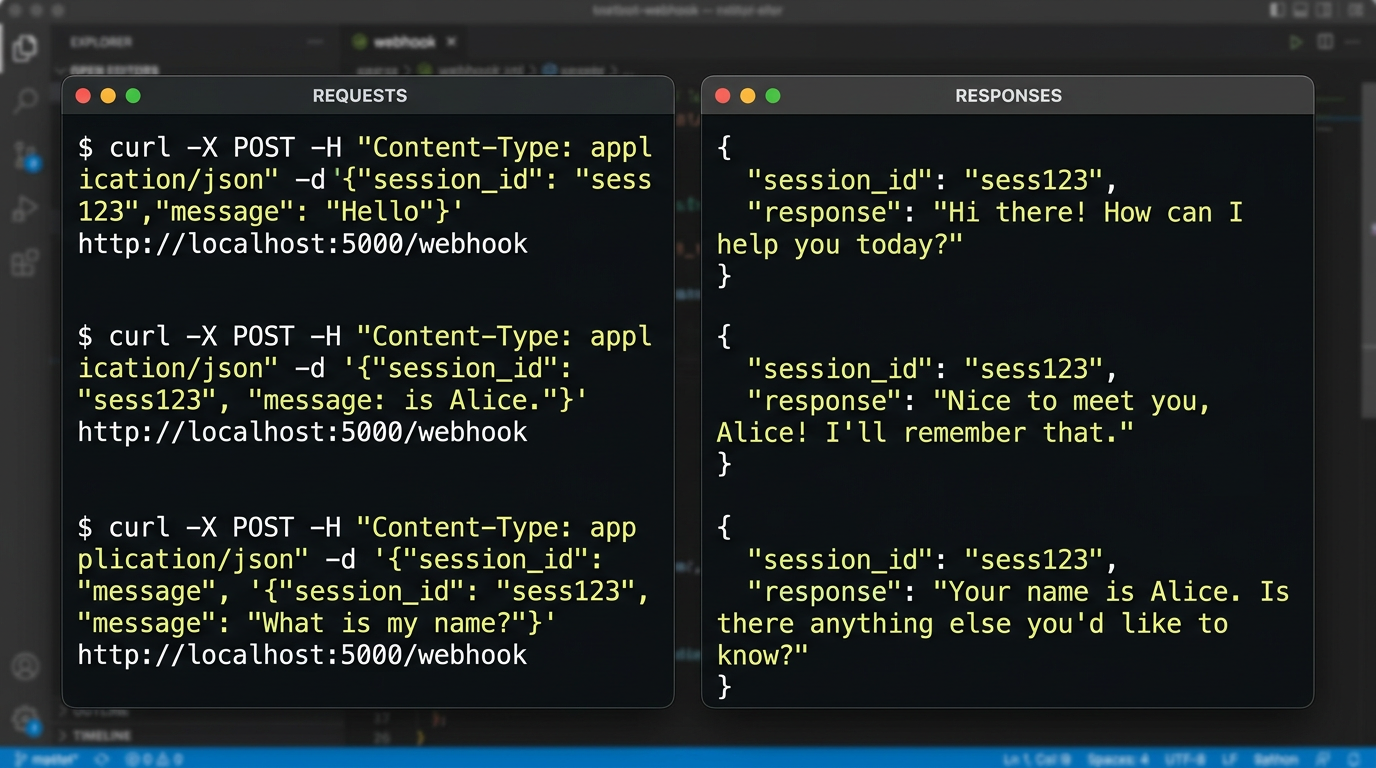
Now test your stateful chatbot:
# First message
curl -X POST http://localhost:5678/webhook/chatbot \
  -H "Content-Type: application/json" \
  -d '{"sessionId": "user123", "message": "My name is Alex"}'

# Follow-up message
curl -X POST http://localhost:5678/webhook/chatbot \
  -H "Content-Type: application/json" \
  -d '{"sessionId": "user123", "message": "What is my name?"}'
The bot should now correctly respond “Alex” because it has access to the conversation history.
Try a practical example—a booking conversation:
- “I need to book an appointment”
- “Sure, what service do you need?”
- “Haircut”
- “What date works for you?”
- “Next Tuesday”
- “Great! I have you down for a haircut next Tuesday.”
Each response builds on previous context.
Common Beginner Mistakes
Forgetting to persist data: Using in-memory storage without Docker volumes means state disappears on container restart. Always configure persistent volumes or external storage for production.
Not handling session expiry: Conversations stored indefinitely consume memory. Implement session timeouts (delete conversations older than 24 hours, for example).
Sending too much context: LLMs have token limits. If you send 100 messages of history, you’ll hit API limits and increase costs. Keep the context window reasonable (5-10 recent messages).
Mixing user sessions: Always validate that sessionId is provided and unique per user. Missing or duplicate session IDs break conversation isolation.
Ignoring sensitive data: Conversation state may include personal information. For production chatbots, consider encryption for stored conversations and comply with privacy regulations.
Scaling Beyond the Basics
This tutorial uses n8n’s workflow static data for simplicity, but for production state management in chatbots, consider:
- Redis: Fast, in-memory session storage with built-in expiration
- PostgreSQL or MongoDB: Persistent database storage for long-term conversation logs
- External APIs: Dedicated session management services
Check n8n’s official documentation for supported database integrations and configuration options for your n8n version.
FAQ
Can I use n8n for free? Yes, the self-hosted version is free and suitable for this tutorial. Verify current pricing on the official n8n website if you need hosted or enterprise features.
How much conversation history should I store? Start with 5-10 messages. This provides enough context without excessive API costs or hitting token limits.
Will my state survive Docker container restarts? Only if you configure Docker volumes correctly. The -v flag in the installation command maps container data to your host filesystem.
Do I need a database? Not for learning or small projects. For production chatbots with many users, a database or Redis is recommended.
How do I clear a user’s conversation? Add a reset endpoint or button that deletes the session from your storage when triggered.
Conclusion
You’ve now built a chatbot with proper state management using n8n and Docker—a no-code AI conversation management solution that maintains context across multiple turns. This foundation enables more sophisticated conversational AI applications, from customer support bots to interactive assistants.
Next steps:
- Add session expiration logic to clean up old conversations
- Implement database storage (PostgreSQL or Redis) for production scale
- Explore role-based conversation management (system prompts, assistant personas)
- Build domain-specific chatbots using this state management pattern
State management in chatbots transforms simple question-answer tools into intelligent conversation partners. Start experimenting with your own use cases, and remember to check official documentation for the latest features and best practices as these tools continue to evolve.
Enjoyed this article?