
Claude Code CLI Installation: A Beginner’s Step-by-Step Guide to Running Claude CLI
Focus keyword: Claude Code CLI installation
If you’re looking to integrate an AI coding assistant directly into your terminal workflow, understanding Claude Code CLI installation is your essential first step. This tutorial walks you through installing Claude Code—Anthropic’s official agentic coding tool—on your system and running your first commands with confidence.
Claude Code is an AI-powered development assistant that reads your codebase, edits files, runs commands, and integrates with your existing development tools. While it’s available as a desktop app, IDE extension, and web interface, the terminal version gives developers powerful command-line access for automation workflows and scripted interactions.
▶Previous tutorial : Claude API cURL Tutorial: How to Call Claude API Directly with cURL
Who This Tutorial Is For
This guide is designed for:
- Developers who want to add AI assistance to their terminal-based workflows
- Tech-savvy beginners comfortable with basic command-line operations
- No-code builders exploring AI automation tools and looking to understand CLI basics
- Anyone searching for how to use Claude Code CLI for beginners without the technical confusion
You don’t need deep CLI expertise, but you should be comfortable opening a terminal and running basic commands on your operating system.
What Is Claude Code (and Why Use the Terminal Version)?
For the latest official details, see official product name is Claude Code.
Before diving into installation, let’s clarify what Claude Code actually is. The official product name is Claude Code—not “Claude Code CLI” as some third-party sources call it. Claude Code is Anthropic’s agentic coding tool that can run in multiple surfaces: your terminal, IDE, desktop app, and browser.
When you use Claude Code in your terminal, you get:
- Scriptable automation: Integrate AI coding assistance into build scripts and workflows
- Direct project access: Work within your existing project directories
- Non-interactive modes: Run headless commands for CI/CD pipelines
- Quick access: Launch AI help without switching contexts from your development environment
Important distinction: Claude Code is separate from Anthropic’s Claude Platform CLI (called ant), which is specifically for interacting with the Claude API. If you’re building API integrations or calling Claude’s language model directly, you want the ant CLI. This tutorial focuses on Claude Code for hands-on coding assistance.
Prerequisites: What You Need Before Installing
Before starting the Claude Code CLI installation process, verify you have:
- A supported operating system: macOS, Linux, Windows, or WSL (Windows Subsystem for Linux)
- Terminal access: Command Prompt, PowerShell, Terminal.app, or your preferred terminal emulator
- Internet connection: Required for installation and Claude Code authentication
- Administrator/sudo privileges: Needed for system-level installation commands
Unlike the deprecated npm installation method, the current official install scripts handle dependencies automatically, so you typically don’t need to pre-install Node.js or Python runtimes.
Installing Claude Code Step by Step
For the latest official details, see native install scripts and platform package managers.
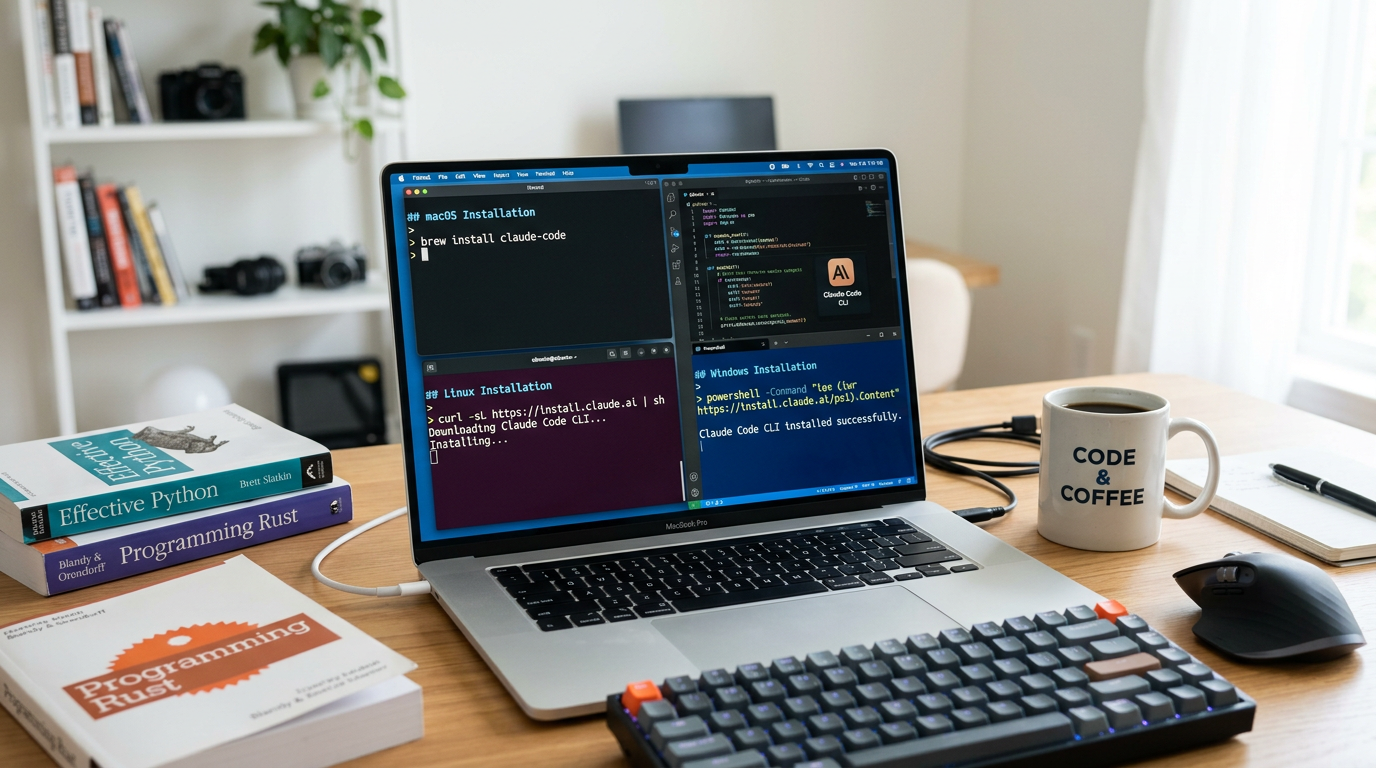
The recommended Claude Code CLI installation methods use native install scripts and platform package managers—not npm. Anthropic has officially deprecated the npm installation path, so avoid any outdated guides recommending npm install -g @anthropic-ai/claude-code.
Installation on macOS and Linux
For macOS, Linux, and WSL users, the simplest installation uses the official install script:
curl -fsSL https://claude.ai/install.sh | bashThis command downloads and executes Anthropic’s installation script, which handles setup automatically.
Alternative for macOS users: If you prefer using Homebrew, you can install Claude Code as a cask:
brew install --cask claude-codeInstallation on Windows
Windows users have three official options depending on their preferred shell:
PowerShell (recommended):
irm https://claude.ai/install.ps1 | iexCommand Prompt:
curl -fsSL https://claude.ai/install.cmd -o install.cmd && install.cmd && del install.cmdWindows Package Manager:
winget install Anthropic.ClaudeCodeAfter installation completes, restart your terminal to ensure the claude command is available in your PATH.
Running Your First Claude Code Command
Once installed, Claude Code runs from your project directory using the claude command. Here’s how to verify your installation works:
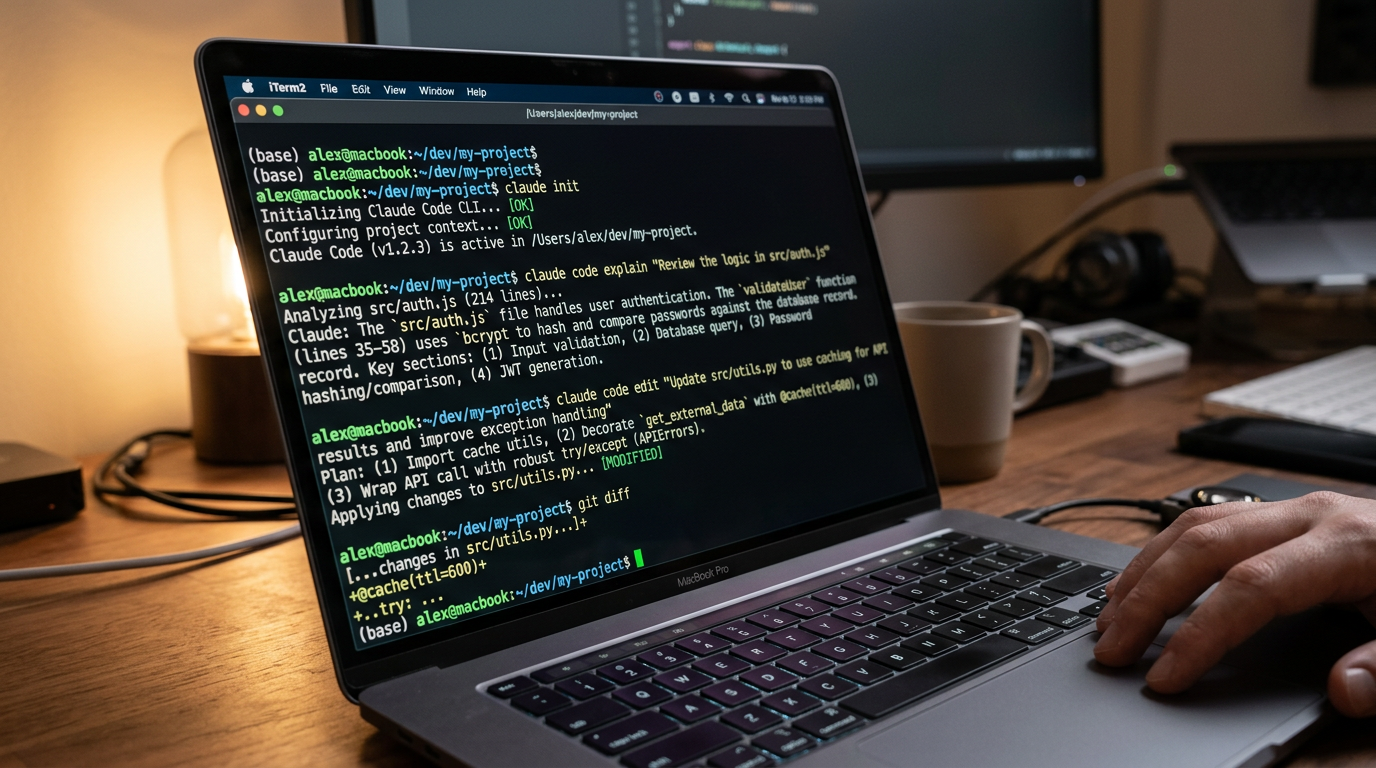
- Navigate to a project directory:
cd ~/your-project- Launch Claude Code:
claude- Authenticate on first use: You’ll be prompted to log in when you run Claude Code for the first time. Follow the authentication prompts in your terminal or browser window.
After authentication completes, Claude Code starts an interactive session where you can ask coding questions, request file edits, or run commands within your project context.
Run Claude CLI Command Examples
Here are practical beginner-friendly commands to try:
Basic interaction (interactive mode):
claudeThen type natural language requests like:
- “Explain what this file does”
- “Add error handling to the main function”
- “Create a README with setup instructions”
Non-interactive usage (print mode):
claude -p "Summarize the structure of this codebase"The -p (or --print) flag runs Claude Code in headless mode, printing the result directly to your terminal without starting an interactive session. This is useful for scripting and automation workflows.
Claude Code CLI Troubleshooting Tips
Even with straightforward installation, beginners often encounter a few common issues:
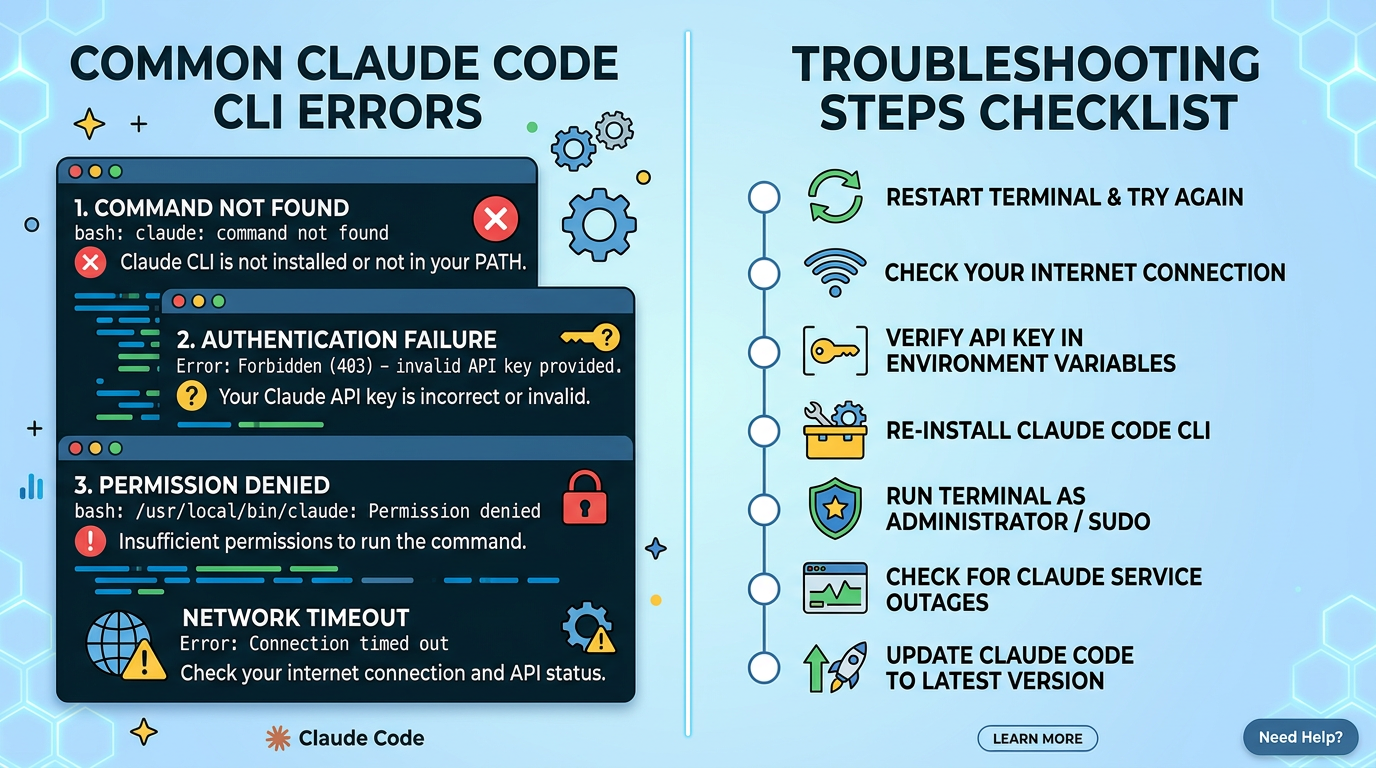
Command Not Found Error
Problem: Running claude returns “command not found” or similar error.
Solution:
- Restart your terminal to refresh your PATH
- Verify installation completed without errors
- On macOS/Linux, check if
~/.bashrc,~/.zshrc, or your shell config was updated - On Windows, verify the installation directory is in your system PATH
Authentication Failures
Problem: Login prompts fail or authentication doesn’t complete.
Solution:
- Ensure you have an active internet connection
- Check that your browser isn’t blocking the authentication redirect
- Verify you’re using a supported Anthropic account
- Try logging out and back in if you’ve previously authenticated
Permission Denied Errors
Problem: Installation script fails with permission errors.
Solution:
- On macOS/Linux, run with
sudoif needed (though the install script typically handles this) - On Windows, run PowerShell or Command Prompt as Administrator
- Check that your user account has permission to install software
Because Claude Code may receive updates and installation methods can evolve, always check the official documentation at code.claude.com for the latest setup guidance and troubleshooting resources if you encounter issues not covered here.
Common Beginner Mistakes to Avoid
For the latest official details, see Claude Platform CLI (called ant).
Confusing Claude Code with the Claude Platform CLI: Remember that Claude Code (terminal command: claude) is for coding assistance, while the Claude Platform CLI (command: ant) is for API interactions. Don’t install the wrong tool.
Using deprecated npm installation: Older guides may reference npm install -g @anthropic-ai/claude-code, but this method is no longer recommended. Stick with the native install scripts or package managers.
Running outside a project directory: Claude Code works best when run from within a project folder where it can access your codebase context. Running it from your home directory or root won’t give meaningful results.
Forgetting to authenticate: You must complete authentication on first use. Skipping or canceling the login prompt will prevent Claude Code from working.
Expecting offline functionality: Claude Code requires an internet connection to communicate with Anthropic’s AI models. Plan your workflow accordingly.
Frequently Asked Questions
Do I need to pay to use Claude Code? Pricing and usage limits for Claude Code depend on your Anthropic account plan. Before diving into heavy usage, review the official pricing page to understand any quotas or costs that may apply to your use case.
Can I use Claude Code with my own API key? Authentication is handled through the login prompt on first use. The official documentation doesn’t specify manual API key configuration for standard terminal usage, though headless/programmatic use via the Agent SDK may have different authentication flows.
How do I update Claude Code? Re-run your original installation command (the curl script, Homebrew cask install, or WinGet command). The installer should detect the existing installation and update to the latest version.
Where can I find more Claude Code commands? After launching claude, type “help” or check the official Claude Code documentation for a full command reference and advanced usage patterns.
What programming languages does Claude Code support? The official documentation describes Claude Code as an agentic coding tool that reads and edits codebases and runs commands, but doesn’t enumerate specific languages. In practice, it works across common development environments—test it with your project to see how well it fits your stack.
Next Steps After Claude Code CLI Installation
Now that you’ve successfully installed Claude Code and verified it works, you’re ready to integrate it into real development workflows:
- Explore interactive mode: Practice asking Claude Code to explain, refactor, or extend your existing code
- Try headless commands: Experiment with
-pflag usage for scripted automation tasks - Check out the Agent SDK: If you want programmatic control, review the Claude Code documentation on headless usage via CLI, Python, or TypeScript
- Integrate with your IDE: Claude Code is also available as an IDE extension—explore that option if you prefer in-editor assistance
- Review the official repository: Visit the official Anthropic GitHub repository at github.com/anthropics/claude-code for updates, issue tracking, and community examples
The official Claude Code overview page and quickstart documentation will help you discover advanced features as you grow comfortable with basic terminal usage.
With Claude Code running successfully in your terminal, you now have a powerful AI coding assistant ready to help with everything from quick code explanations to complex refactoring tasks—all accessible through simple command-line workflows.
References
Enjoyed this article?