
Claude API cURL Tutorial: How to Call Claude API Directly with cURL
Focus keyword: Claude API cURL tutorial
If you’re a developer who wants to test the Claude API quickly without setting up an SDK or building a full application, cURL is your best friend. This Claude API cURL tutorial walks you through making your first API call to Claude from your command line, understanding authentication, and building simple automation scripts.
By the end of this tutorial, you’ll have working cURL commands you can copy, customize, and integrate into your workflows.
▶Previous tutorial : Building Claude App with TypeScript: Your First Step-by-Step Guide
Who This Tutorial Is For
This guide is designed for:
- Developers who want to test API endpoints before writing application code
- Technical beginners learning how REST APIs work in practice
- No-code builders who need to prototype API calls before connecting tools like n8n
- Anyone who prefers lightweight command-line tools over heavy SDKs
You don’t need to be a cURL expert, but basic command-line familiarity helps.
What Is cURL and Why Use It with Claude API?
cURL is a command-line tool for making HTTP requests. It’s pre-installed on macOS and Linux, and available for Windows. Think of it as a simple way to “talk” to web APIs without opening a browser or writing code.
Why use cURL for Claude API calls?
- Fast testing: Make API calls in seconds without writing a script
- Debugging: See exactly what you’re sending and receiving
- Portability: Works anywhere you have a terminal
- Learning: Understand API fundamentals before using SDKs
- Automation: Integrate into shell scripts for simple workflows
cURL is perfect for exploration and prototyping. Once you’re ready to build production applications, you’ll graduate to official SDKs or automation platforms.
Prerequisites and Setup
For the latest official details, see Anthropic console.
Before you start, you’ll need:
- cURL installed (check by running
curl --versionin your terminal) - An Anthropic API key from the Anthropic console
- A basic understanding of JSON format
- API credits available in your Anthropic account
Getting Your Claude API Key
To call the Claude API, you need an API key. Visit the Anthropic console (check the official Anthropic website for the current console URL), create an account if you haven’t already, and generate an API key from the API keys section.
Important security note: Treat your API key like a password. Never commit it to version control or share it publicly.
Before running the examples below, check the official Anthropic pricing page to understand current billing requirements, rate limits, and any free tier availability, as these details may change.
How to Call Claude API with cURL: Your First Request
Let’s make your first successful API call. This is the simplest working example that sends a message to Claude and gets a response.

The Basic cURL Command Structure
Here’s a complete working command (replace YOUR_API_KEY with your actual key):
curl https://api.anthropic.com/v1/messages \
  -H "Content-Type: application/json" \
  -H "x-api-key: YOUR_API_KEY" \
  -H "anthropic-version: 2023-06-01" \
  -d '{
    "model": "claude-3-sonnet-20240229",
    "max_tokens": 1024,
    "messages": [
      {"role": "user", "content": "Hello, Claude! Explain what you are in one sentence."}
    ]
  }'
What each part does:
https://api.anthropic.com/v1/messages— The official Messages API endpoint-H "Content-Type: application/json"— Tells the API you’re sending JSON data-H "x-api-key: YOUR_API_KEY"— Your authentication header (verified from official docs)-H "anthropic-version: 2023-06-01"— API version header (verify current version in official docs before production use)-d '{...}'— The request body containing your prompt and parameters
Understanding the Request Body
The JSON request body has three required fields:
model: Which Claude model to use. Before running this example, check the official Anthropic models documentation for currently available model names, as naming conventions may change. The example uses a placeholder format.
max_tokens: Maximum length of Claude’s response (measured in tokens, roughly 3-4 characters per token). Start with 1024 for testing.
messages: An array of message objects with role and content fields. The role is either user (you) or assistant (Claude). For a simple prompt, you only need one user message.
Reading the Response
A successful API call returns JSON like this:
{
  "id": "msg_01XYZ...",
  "type": "message",
  "role": "assistant",
  "content": [
    {
      "type": "text",
      "text": "I'm Claude, an AI assistant created by Anthropic to be helpful, harmless, and honest."
    }
  ],
  "model": "claude-3-sonnet-20240229",
  "stop_reason": "end_turn",
  "usage": {
    "input_tokens": 15,
    "output_tokens": 25
  }
}
The AI’s actual response text is inside content[0].text. The usage object shows how many tokens you consumed (important for billing).
Claude API Authentication cURL: Securing Your API Key
For the latest official details, see x-api-key header.
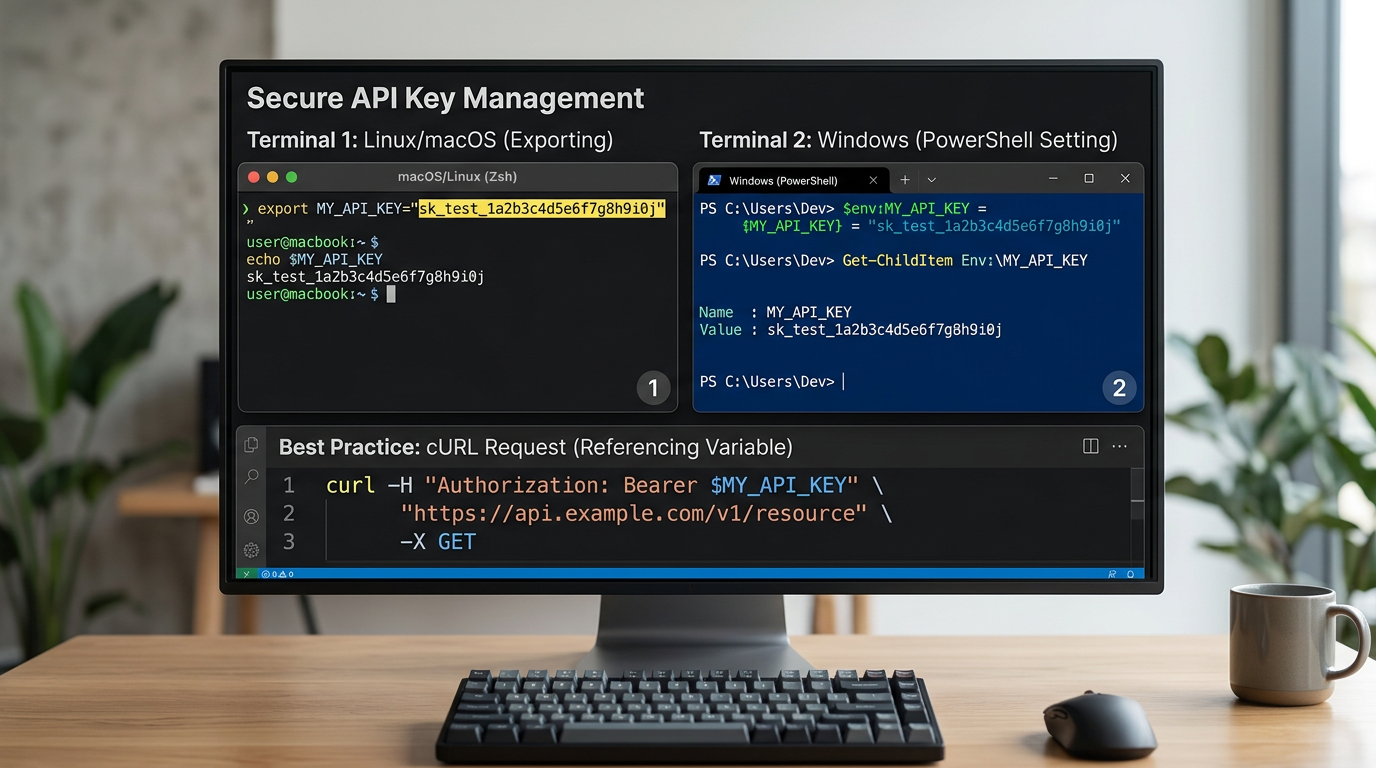
Never hardcode your API key directly in scripts or commands that might be saved in your shell history.
Using Environment Variables
Set your API key as an environment variable:
Linux/macOS:
export ANTHROPIC_API_KEY="your_api_key_here"Windows PowerShell:
$env:ANTHROPIC_API_KEY="your_api_key_here"Then reference it in your cURL command:
curl https://api.anthropic.com/v1/messages \
  -H "Content-Type: application/json" \
  -H "x-api-key: $ANTHROPIC_API_KEY" \
  -H "anthropic-version: 2023-06-01" \
  -d '{
    "model": "claude-3-sonnet-20240229",
    "max_tokens": 1024,
    "messages": [
      {"role": "user", "content": "What is the capital of France?"}
    ]
  }'
This approach keeps your key secure and makes scripts portable.
Customizing Your cURL POST Request Claude API
Once you have the basic request working, you can customize several parameters.
Changing the Prompt
Simply modify the content field inside the messages array:
-d '{
  "model": "claude-3-sonnet-20240229",
  "max_tokens": 1024,
  "messages": [
    {"role": "user", "content": "Write a haiku about programming."}
  ]
}'
Multi-Line Prompts
For longer prompts, use proper JSON escaping or save your prompt in a file:
Using a file:
# Save your prompt to prompt.txt
echo "Explain quantum computing to a 10-year-old." > prompt.txt

# Read it into a variable and use in cURL
PROMPT=$(cat prompt.txt)
curl https://api.anthropic.com/v1/messages \
  -H "Content-Type: application/json" \
  -H "x-api-key: $ANTHROPIC_API_KEY" \
  -H "anthropic-version: 2023-06-01" \
  -d "{
    \"model\": \"claude-3-sonnet-20240229\",
    \"max_tokens\": 1024,
    \"messages\": [
      {\"role\": \"user\", \"content\": \"$PROMPT\"}
    ]
  }"
Adjusting Temperature and Other Parameters
The Claude API supports additional optional parameters like temperature (controls randomness). Before using optional parameters in production, verify their current names and acceptable values in the official API reference, as specifications may change.
Claude API Automation Example: Building a Simple Script
Transform your cURL command into a reusable shell script for basic automation.
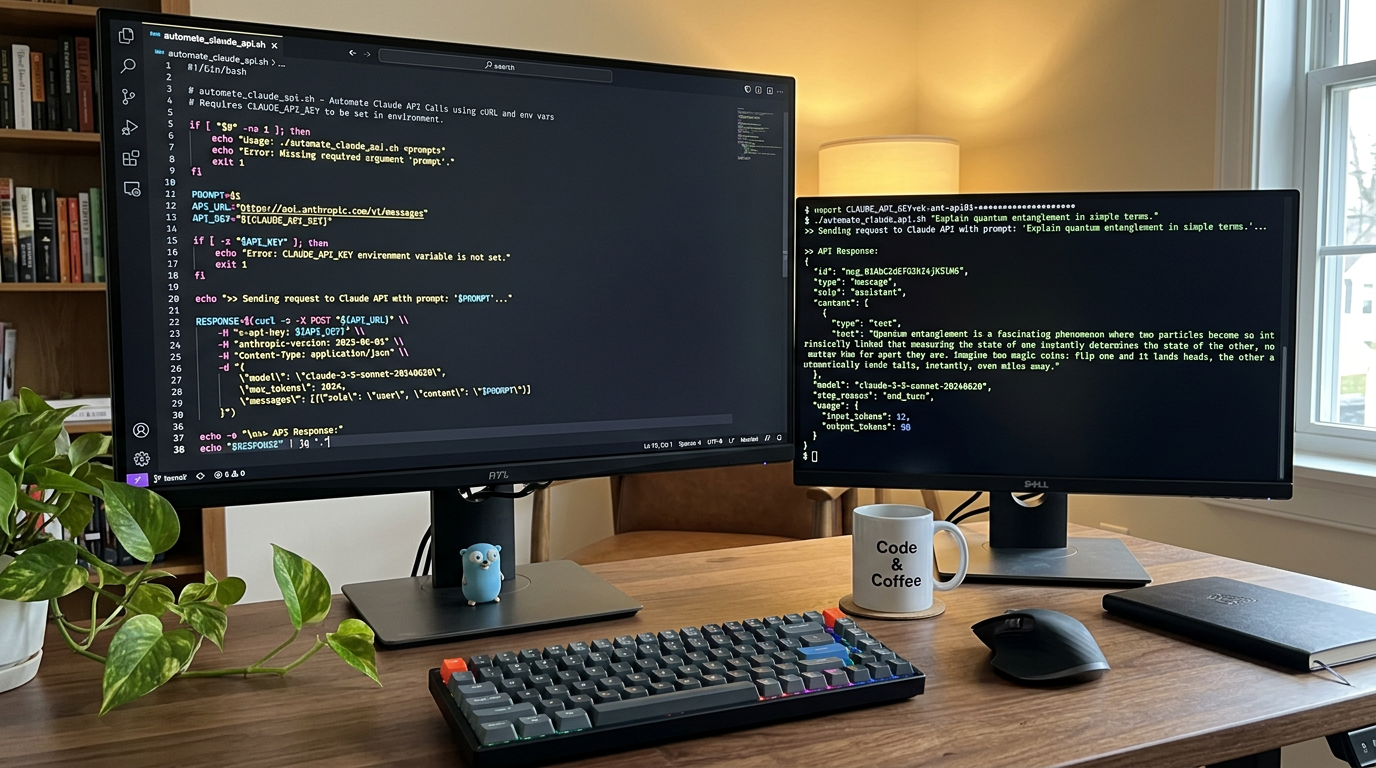
Create ask_claude.sh:
#!/bin/bash

# Check if prompt was provided
if [ -z "$1" ]; then
  echo "Usage: ./ask_claude.sh 'Your question here'"
  exit 1
fi

# Check if API key is set
if [ -z "$ANTHROPIC_API_KEY" ]; then
  echo "Error: ANTHROPIC_API_KEY environment variable not set"
  exit 1
fi

PROMPT="$1"

# Make API call and save response
RESPONSE=$(curl -s https://api.anthropic.com/v1/messages \
  -H "Content-Type: application/json" \
  -H "x-api-key: $ANTHROPIC_API_KEY" \
  -H "anthropic-version: 2023-06-01" \
  -d "{
    \"model\": \"claude-3-sonnet-20240229\",
    \"max_tokens\": 1024,
    \"messages\": [
      {\"role\": \"user\", \"content\": \"$PROMPT\"}
    ]
  }")

# Print full response (use jq for cleaner output if available)
echo "$RESPONSE"
Make it executable and run:
chmod +x ask_claude.sh
./ask_claude.sh "What are three benefits of using APIs?"
Parsing Responses with jq
For cleaner output, pipe the response through jq (a JSON processor):
curl -s https://api.anthropic.com/v1/messages \
  -H "Content-Type: application/json" \
  -H "x-api-key: $ANTHROPIC_API_KEY" \
  -H "anthropic-version: 2023-06-01" \
  -d '{
    "model": "claude-3-sonnet-20240229",
    "max_tokens": 1024,
    "messages": [{"role": "user", "content": "Hello!"}]
  }' | jq -r '.content[0].text'
This extracts just Claude’s text response, making it perfect for automation workflows.
Common Beginner Mistakes and Troubleshooting
Authentication Error (401)
Error message: "error": {"type": "authentication_error"}
Cause: Invalid or missing API key.
Fix: Verify your API key is correct and properly included in the x-api-key header.
Bad Request (400)
Error message: "error": {"type": "invalid_request_error"}
Cause: Malformed JSON or missing required fields.
Fix: Check your JSON syntax carefully. Common issues include missing commas, unescaped quotes, or incorrect field names. Before submitting requests, verify required parameter names in the official API reference.
Rate Limit Error (429)
Error message: "error": {"type": "rate_limit_error"}
Cause: You’ve sent too many requests too quickly.
Fix: Add delays between requests or implement retry logic with exponential backoff. Check the official Anthropic documentation for current rate limits.
Invalid Model Name
Cause: Using an outdated or incorrect model identifier.
Fix: Verify current model names in the official Anthropic models documentation before running examples, as model naming may change over time.
When to Use cURL vs Other Tools
Use cURL when:
- Testing API endpoints quickly
- Debugging authentication or request issues
- Running simple one-off commands
- Learning how the API works
Graduate to SDKs when:
- Building production applications
- Need robust error handling
- Working with complex multi-turn conversations
- Integrating with larger codebases
Use automation platforms like n8n when:
- Connecting multiple APIs and services
- Building no-code workflows
- Need visual workflow management
- Scheduling automated tasks
Frequently Asked Questions
Do I need to pay to use the Claude API? Check the official Anthropic pricing page for current information about free tiers, billing requirements, and token costs, as these details may change.
Can I use cURL on Windows? Yes. Windows 10 and later include cURL by default. For older versions, download it from the official cURL website. Note that Windows PowerShell may require slightly different syntax (use double quotes and escape differently).
How do I have a conversation with multiple back-and-forth messages? Add multiple message objects to the messages array, alternating between user and assistant roles. The official API documentation provides detailed examples of multi-turn conversation formatting.
What’s the difference between max_tokens and the length of my prompt? max_tokens limits Claude’s response length, not your prompt. Input and output tokens are billed separately (check pricing for details).
Can I stream responses with cURL? Streaming is possible but more complex with cURL. Check the official Anthropic streaming documentation for current implementation details if you need real-time response streaming.
Next Steps: Building Real Automation Workflows
You now know how to call the Claude API with cURL, understand authentication, customize requests, and build simple automation scripts. This Claude API cURL tutorial gives you the foundation for API-driven workflows.
What to explore next:
- Learn the official Anthropic Python or JavaScript SDK for production applications
- Integrate Claude API calls into n8n workflows for visual automation
- Explore advanced parameters and features in the official API reference
- Build shell scripts that chain multiple API calls together
- Combine Claude with other APIs for complex automation
cURL is your testing ground. Once you’re comfortable with how the API works, you’ll be ready to build more sophisticated integrations using the tools that best fit your project needs. Always check the official documentation for the latest features, model availability, and best practices as the API evolves.
Enjoyed this article?