
Beginner’s Guide to Claude Workbench Prompts: Experiment and Export Code Easily
Focus keyword: Claude Workbench prompts
If you’ve used ChatGPT or Claude’s chat interface, you know how to ask questions and get answers. But what if you want to turn those conversations into repeatable code? What if you need to test different versions of your prompts, adjust how the AI responds, or integrate Claude into your own automation workflows?
That’s where experimenting with Claude Workbench prompts comes in. In this beginner-friendly tutorial, you’ll learn how to use a prompt experimentation environment to build, test, and export working code—moving from casual AI chat to structured, repeatable automation.
▶Previous tutorial : AI Cost Optimization Strategies Tutorial: Caching, Batching, and Model Downgrades Explained
Who This Tutorial Is For
This guide is for developers, no-code builders, and tech-savvy beginners who want to:
- Understand how to structure prompts for APIs (not just chat)
- Experiment with prompt variations systematically
- Export working code they can use in automation workflows
- Bridge the gap between using AI chat interfaces and building with AI APIs
You don’t need deep programming experience, but basic familiarity with concepts like APIs, code snippets, and developer tools will help.
What Is a Prompt Experimentation Workbench?
For the latest official details, see Claude Science AI workbench for scientists.
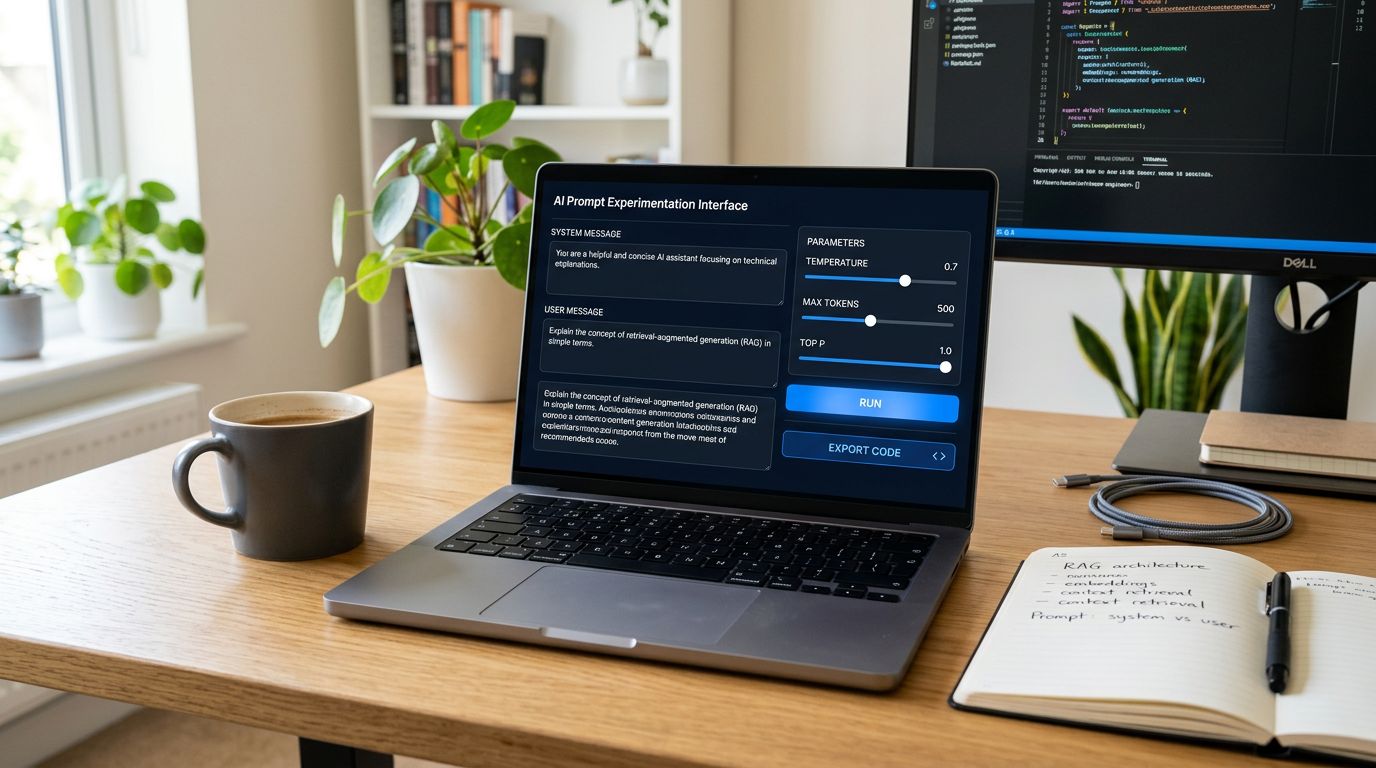
When you use Claude or ChatGPT through a chat interface, you’re having a conversation. When you build AI automation workflows, you need something more structured: a way to define exactly how the AI should behave, test different approaches, and capture that configuration as reusable code.
A prompt experimentation workbench (sometimes called a playground, prompt builder, or development console) is a developer-focused interface that lets you:
- Write structured prompts with system instructions and user inputs
- Adjust parameters like response length and creativity
- Run the same prompt multiple times to test consistency
- Export your configuration as code in Python, JavaScript, or other formats
Important context: The term “Claude Workbench” or “Anthropic Workbench” appears in some third-party tutorials and courses, but official Anthropic documentation uses different naming. Anthropic provides the Anthropic Console (accessible at console.anthropic.com) which includes prompt-building and experimentation features. Anthropic also offers specialized tools like Claude Science (an AI workbench for scientists) and Claude Code (for coding assistance).
Before following any tutorial about “Claude Workbench,” check the current Anthropic Console interface, as feature names and locations may have evolved. This guide focuses on the core workflow—creating, testing, and exporting prompts—that applies regardless of the exact UI labels.
How Workbench Prompts Differ from Chat Prompts
In a chat interface, you type a message and get a response. In a workbench environment for prompt engineering for beginners, you work with structured components:
- System message: Instructions that define the AI’s role, tone, and behavior (e.g., “You are a helpful coding assistant who explains concepts simply”)
- User message: The actual input or question you want the AI to respond to
- Parameters: Settings that control output style, such as temperature (creativity), max tokens (response length), and model selection
This structure lets you separate what the AI should be from what you’re asking it to do—crucial for building reliable automation.
Prerequisites and Setup Context
Before you begin AI prompt experimentation, you’ll need:
- An Anthropic account: Sign up at anthropic.com or console.anthropic.com
- API access: Depending on your account tier (Free, Pro, Team, or Enterprise), you may need to add billing information or have API credits available
- Basic understanding of what an API is: You don’t need to write code yet, but knowing that APIs let programs talk to each other will help
Cost considerations: Running prompts through the Anthropic Console uses the Claude API, which is billed based on token usage (roughly 1 token = 4 characters). Check the official Anthropic pricing page for current rates, free tier limits, and trial credits. Most experimentation for learning purposes costs pennies, but it’s important to monitor usage.
Where to access the experimentation interface: Log into console.anthropic.com and look for features labeled “Prompt,” “Playground,” “Workbench,” or similar. The exact navigation may vary as Anthropic updates its console. If you can’t find a dedicated prompt experimentation area, the console dashboard typically provides API key management and example code—both useful for the workflow described here.
Step-by-Step: Creating and Testing Your First Prompt
Let’s walk through the core workflow step by step.
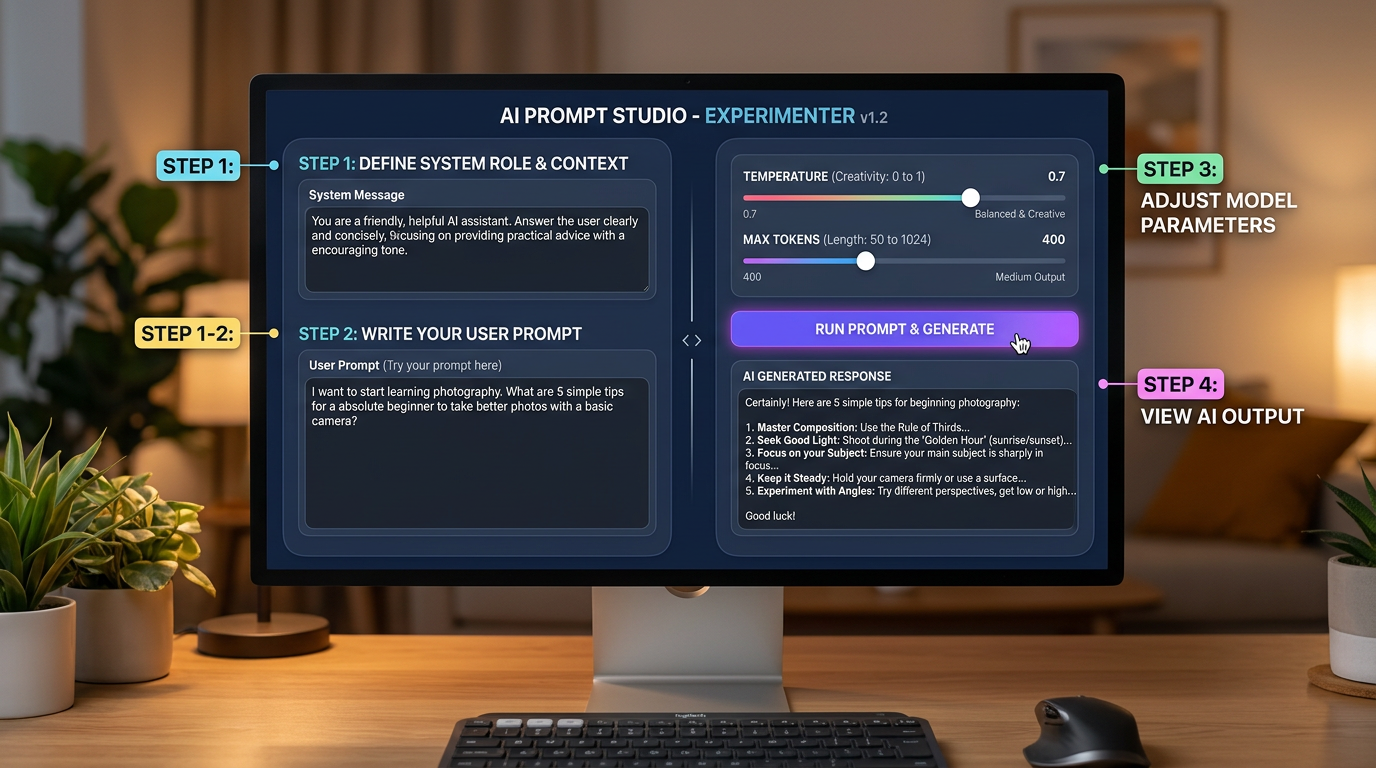
Step 1: Access the Prompt Interface
- Log into the Anthropic Console
- Navigate to the prompt experimentation or playground area (check the sidebar or main dashboard)
- You should see input fields for system messages, user messages, and parameter controls
If the interface looks different from what you expected, look for any area that lets you compose a message and run it against a Claude model—that’s your starting point.
Step 2: Write a Simple System Message
In the system message field, write instructions that define how Claude should behave:
You are a technical documentation assistant. Explain concepts clearly using simple language and practical examples.This tells Claude to adopt a specific role and tone before it sees your actual question.
Step 3: Write a User Message
In the user message field, write the actual prompt or question:
Explain what an API endpoint is to someone who has never used an API before.Step 4: Set Basic Parameters
Look for parameter controls (often sliders or dropdowns) for:
- Model: Choose a Claude model (e.g., Claude 3.5 Sonnet, Claude 3 Opus). Start with the default recommended model.
- Temperature: Controls randomness. Lower (0.0–0.3) = more consistent and focused. Higher (0.7–1.0) = more creative. Start with 0.5.
- Max tokens: Maximum response length. Start with 500–1000 tokens for typical responses.
Step 5: Run the Prompt
Click the “Run,” “Submit,” or equivalent button. You should see Claude’s response appear in an output panel.
Step 6: Experiment with Variations
Now comes the core of how to use Claude Workbench for experimentation. Try:
- Changing the system message: Remove the system instruction and run again. Notice how the tone changes?
- Adjusting temperature: Run the same prompt at temperature 0.2, then 0.8. Higher temperature produces more varied responses.
- Rephrasing the user message: Ask the same question in a different way. See how output quality changes.
This iterative process—run, review, adjust, run again—is AI prompt experimentation in action.
Exporting Code from the Workbench
Once you’ve refined a prompt that works well, you need to export code from Claude Workbench (or the equivalent feature in the console) so you can use it in your own projects.
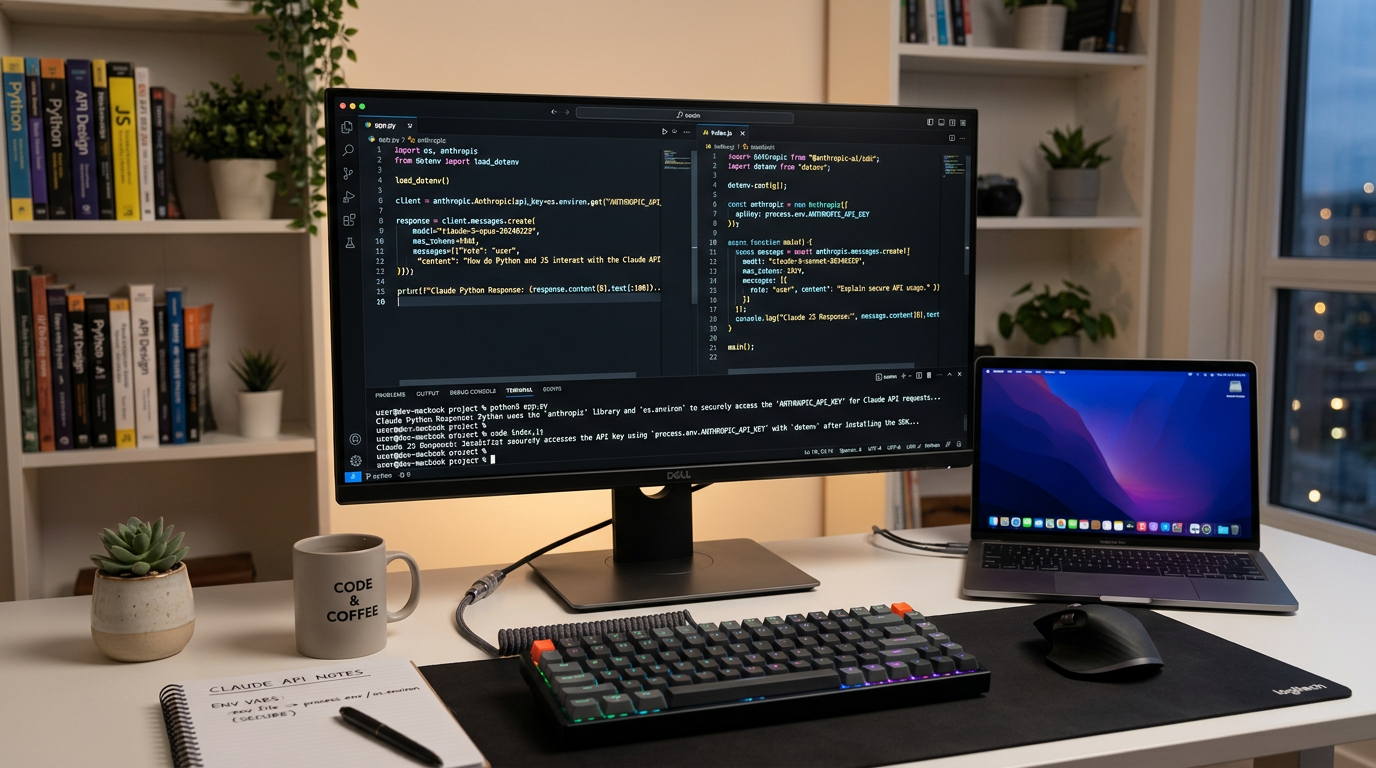
Current export options: As of this writing, official Anthropic documentation does not detail specific “export code” buttons or formats for a console workbench UI. However, the Claude API documentation provides complete code examples for all supported languages.
Here’s the practical workflow to get working code:
Method 1: Use the Export Feature (If Available)
- Look for an “Export,” “Get Code,” or “View API Request” button in the workbench interface
- Select your preferred language (Python, JavaScript, cURL, etc.)
- Copy the generated code snippet
- The export should include your system message, user message, model selection, and parameter settings
Method 2: Construct Code from API Documentation
If no export button is available, use the official Claude API reference to build your code manually:
Python example (based on the Claude API):
import anthropic

client = anthropic.Anthropic(api_key="your-api-key-here")

message = client.messages.create(
    model="claude-3-5-sonnet-20241022",
    max_tokens=1000,
    temperature=0.5,
    system="You are a technical documentation assistant. Explain concepts clearly using simple language and practical examples.",
    messages=[
        {"role": "user", "content": "Explain what an API endpoint is to someone who has never used an API before."}
    ]
)

print(message.content)
JavaScript example:
import Anthropic from "@anthropic-ai/sdk";

const client = new Anthropic({
  apiKey: process.env.ANTHROPIC_API_KEY,
});

const message = await client.messages.create({
  model: "claude-3-5-sonnet-20241022",
  max_tokens: 1000,
  temperature: 0.5,
  system: "You are a technical documentation assistant. Explain concepts clearly using simple language and practical examples.",
  messages: [
    {
      role: "user",
      content: "Explain what an API endpoint is to someone who has never used an API before.",
    },
  ],
});

console.log(message.content);
Replace "your-api-key-here" with your actual API key from the Anthropic Console. Store API keys securely (use environment variables, not hardcoded strings).
Method 3: Test Your Exported Code
- Install the required SDK (e.g.,
pip install anthropicfor Python ornpm install @anthropic-ai/sdkfor JavaScript) - Set your API key as an environment variable:
export ANTHROPIC_API_KEY=your-key - Run the script
- Verify the output matches what you saw in the workbench
This completes the experiment-to-implementation loop.
Common Beginner Mistakes
Avoid these pitfalls when experimenting with Claude Workbench prompts:
1. Confusing system and user messages: The system message sets behavior; the user message asks the question. Don’t put your question in the system message.
2. Ignoring parameter impact: Temperature and max tokens significantly affect output. Always note which settings produced your best results.
3. Testing only once: AI outputs can vary slightly between runs, especially at higher temperatures. Test important prompts multiple times.
4. Not saving successful prompts: Workbench interfaces may or may not save prompt history automatically. Copy and save your best configurations externally.
5. Hardcoding API keys: Never put your API key directly in code you share or commit to version control. Use environment variables.
6. Forgetting about costs: Each prompt run uses billable tokens. Monitor your usage dashboard to avoid unexpected charges.
7. Skipping the official documentation: Always verify parameter names, available models, and API behavior from the official Anthropic API reference before deploying code.
Frequently Asked Questions
Do I need a paid account to experiment with Claude prompts? Account requirements vary. Anthropic offers different tiers (Free, Pro, Team, Enterprise) with different API access levels. Check the current pricing page and your console dashboard to understand your access and any free trial credits.
How do I save my prompts for later use? Prompt history and versioning features depend on the specific console interface you’re using. Look for “Save,” “History,” or “Templates” options. If unavailable, maintain your own library of prompt configurations in a text file or note-taking app.
What’s the difference between Claude.ai chat and the API console? Claude.ai chat is for interactive conversations. The API console (and workbench features) are for developers who want to build applications, test prompts systematically, and export code.
Which programming language should I export to? Choose the language you’re most comfortable with or that matches your automation tool. Python and JavaScript are most common. For command-line testing, cURL works without installing an SDK.
Can I use exported code in n8n or other automation platforms? Yes. Once you have working API code, you can adapt it for n8n’s HTTP Request node or Code node, Zapier, Make.com, or any platform that supports HTTP requests or JavaScript/Python execution.
Next Steps: Building on Your Prompt Experimentation Skills
You now understand the beginner guide Claude Workbench workflow: create structured prompts with system and user messages, experiment with parameters, and export working code.
Here’s what to explore next:
- Learn more prompt engineering patterns: Study techniques like few-shot examples, chain-of-thought prompting, and role-based instructions
- Integrate Claude into automation workflows: Use exported code in n8n, Zapier, or custom scripts to automate content generation, data processing, or API orchestration
- Experiment with different Claude models: Compare output quality and cost across Sonnet, Opus, and other model variants
- Add tools and function calling: Advanced workbench usage includes defining custom tools Claude can invoke
- Monitor and optimize token usage: Use the console dashboard to track costs and refine prompts for efficiency
Before diving into advanced topics, practice the core loop: experiment, refine, export, test. This foundation applies to all AI automation work, regardless of which specific tools or interfaces you use.
Remember to check the latest official Anthropic documentation for updates to console features, API capabilities, and best practices as the platform evolves.
Enjoyed this article?