SDK vs CLI: Making the Right Choice with Practical Examples
Focus keyword: SDK vs CLI
If you’ve ever read a tutorial that said “use the SDK” or “install the CLI” and wondered what the difference actually is—or which one you should use—you’re not alone. When you’re building automation workflows, integrating APIs, or working with tools like Docker, n8n, or OpenAI, understanding SDK vs CLI is essential for choosing the right approach.
This tutorial will help you understand what SDKs and CLIs are, when to use each one, and how to confidently pick the right tool for your project. You’ll see practical examples from real automation scenarios and get a clear framework for making these decisions.
▶Previous tutorial : Streaming SDK Tutorial: How to Process Streaming Responses for Real-Time AI Workflows
Who This Tutorial Is For
This guide is designed for:
- Developers exploring new APIs and tools
- No-code builders who occasionally need to work with command-line tools or code
- Tech-savvy beginners building AI automation workflows
- Anyone who has been confused by documentation that assumes you know the difference
You don’t need computer science knowledge, but basic familiarity with running commands in a terminal and reading code examples will help.
What Is an SDK?
For the latest official details, see OpenAI Python SDK.

An SDK (Software Development Kit) is a collection of code libraries, documentation, and tools designed to help you build applications in a specific programming language. When you use an SDK, you’re writing code that imports and uses these libraries within your application.
Think of an SDK as a toolbox of pre-built functions you can call directly from your Python, JavaScript, or other code. The SDK handles the complexity of communicating with an API, managing authentication, and formatting requests properly.
Example: If you want your Python application to interact with OpenAI’s API, you would install the OpenAI Python SDK and write code like this:
import openai

openai.api_key = "your-api-key"

response = openai.ChatCompletion.create(
    model="gpt-4",
    messages=[{"role": "user", "content": "Hello!"}]
)

print(response.choices[0].message.content)
The SDK gives you Python functions (like ChatCompletion.create()) that handle all the technical details of making HTTP requests, handling errors, and parsing responses.
Key characteristics of SDKs:
- Language-specific (Python SDK, JavaScript SDK, etc.)
- Installed using package managers (pip, npm)
- Integrated directly into your application code
- Require programming knowledge
- Provide type safety and IDE autocomplete
- Handle complex error handling and retry logic
What Is a CLI?
For the latest official details, see Docker CLI.
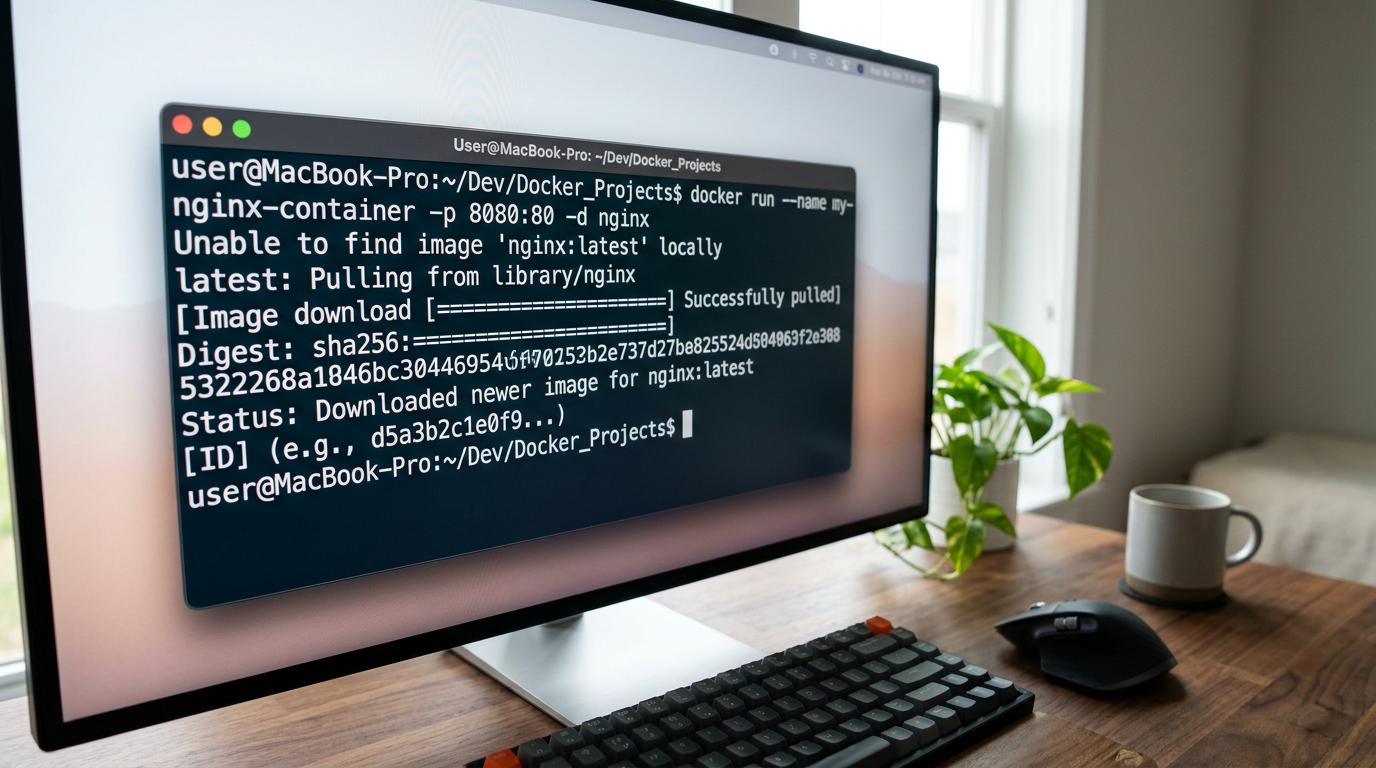
A CLI (Command-Line Interface) is a standalone program you run from your terminal or command prompt. CLIs let you perform tasks by typing commands, without writing any application code.
You interact with CLIs by opening your terminal and typing commands with options and arguments. The CLI tool does the work and returns results directly to your terminal.
Example: If you want to start a Docker container, you would use the Docker CLI:
docker run -d -p 80:80 nginxThis single command pulls an nginx image and starts a container—no code required.
Key characteristics of CLIs:
- Standalone executable programs
- Run from terminal or command prompt
- Work across programming languages
- Can be used in shell scripts for automation
- Simpler learning curve for basic tasks
- Platform-specific installation (though often cross-platform)
SDK vs CLI: Key Differences
Here’s how SDKs and CLIs compare across important dimensions:
| Aspect | SDK | CLI |
|---|---|---|
| Installation | Package manager (pip, npm) | Binary download or package manager |
| Usage context | Inside application code | Terminal/command prompt |
| Language requirement | Specific language (Python, JS, etc.) | Language-agnostic |
| Learning curve | Steeper (need to know the language) | Gentler (simpler command syntax) |
| Error handling | Programmatic (try/catch, conditionals) | Exit codes and output parsing |
| Best for | Building applications with complex logic | One-off tasks, scripts, manual testing |
| Documentation | API reference, code examples | Command reference, man pages |
When to Use an SDK
Choose an SDK when you’re building an application that needs programmatic control and complex logic. SDKs shine in these scenarios:
1. Building production applications: When you’re creating a web app, automation platform, or service that needs to interact with an API as part of its core functionality.
Example: A Node.js app that monitors AWS S3 buckets and triggers workflows in n8n would use the AWS SDK to list and watch buckets programmatically.
2. Complex error handling: When you need to catch specific errors, retry failed requests, or implement custom fallback logic.
Example: Your automation needs to retry OpenAI API calls with exponential backoff when rate limits are hit.
3. Type safety and IDE support: When working in typed languages (TypeScript, Python with type hints) where autocomplete and type checking help you avoid mistakes.
4. Integration with existing code: When you already have an application and need to add new API functionality to it.
5. Dynamic operations: When the parameters or flow of your API interactions depend on runtime conditions, user input, or data from other sources.
When to Use a CLI
Choose a CLI when you need quick results, manual control, or simple automation. CLIs are ideal for:
1. One-off tasks: Quick operations you run manually when needed.
Example: Using Docker CLI to quickly spin up a test database: docker run -d -e POSTGRES_PASSWORD=secret postgres
2. Learning and exploration: When you’re first exploring a new tool or API and want to see immediate results.
Example: Testing an API endpoint with curl before building SDK integration.
3. Shell scripts and automation: When automating DevOps tasks, deployment scripts, or CI/CD pipelines.
Example: A bash script that uses AWS CLI to back up files to S3 every night:
#!/bin/bash
aws s3 sync /local/backup s3://my-backup-bucket
4. System administration: Managing servers, containers, or infrastructure where command-line tools are standard.
5. Cross-language compatibility: When you need the same tool to work in different projects using different languages.
6. No code required: When team members who don’t code need to perform tasks (with proper documentation).
Practical Comparison: The Same Task Both Ways
For the latest official details, see AWS CLI.
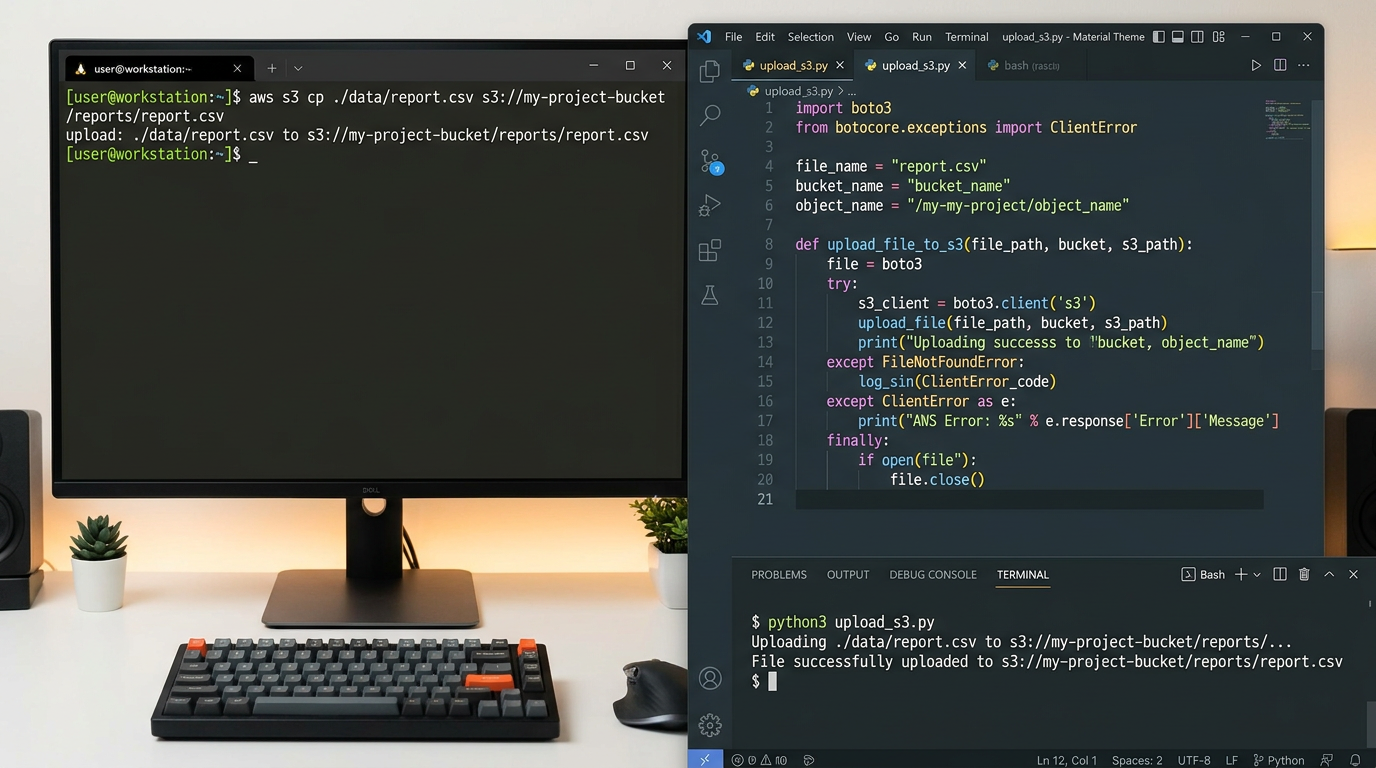
Let’s see how the same task—uploading a file to AWS S3—looks with both approaches.
Using AWS CLI:
aws s3 cp my-file.txt s3://my-bucket/my-file.txtSimple, direct, one line. Perfect for manual uploads or simple shell scripts.
Using AWS SDK (Python with boto3):
import boto3

s3 = boto3.client('s3')

try:
    s3.upload_file('my-file.txt', 'my-bucket', 'my-file.txt')
    print("Upload successful!")
except Exception as e:
    print(f"Upload failed: {e}")
    # Send alert, retry, or handle error
More verbose, but you can add error handling, logging, notifications, and conditional logic.
Both accomplish the same task, but the SDK gives you programmatic control while the CLI gives you simplicity.
Common Mistakes When Choosing Between SDK and CLI
Mistake #1: Calling CLI commands from your code when an SDK exists
Beginners often use Python’s subprocess module to call CLI commands instead of using the proper SDK:
# Don't do this if an SDK exists
import subprocess
subprocess.run(["docker", "run", "nginx"])
This approach is fragile, harder to debug, and loses the benefits of error handling and type safety. Use the Docker SDK instead.
When calling CLIs from code is acceptable: When no SDK exists, when you need to use a specialized CLI tool, or when integrating legacy systems.
Mistake #2: Trying to build complex automation with only CLI commands
Long shell scripts with dozens of CLI commands become hard to maintain. If your script has complex conditional logic, loops over API responses, or needs robust error handling, an SDK will serve you better.
Mistake #3: Assuming you must choose one or the other
Many projects benefit from using both. You might use the CLI during development and debugging, then use the SDK in your production code. You might use CLI commands in deployment scripts while your application itself uses SDKs.
Mistake #4: Not checking which options your tool offers
Before deciding, verify what your tool actually provides. Not all tools offer both—some only have SDKs (like many language-specific libraries), while others only have CLIs or APIs.
Tools That Offer Both SDK and CLI
For the latest official details, see n8n Documentation.
Many popular tools give you both options. Here are common examples (verify current availability in official documentation before use, as tooling changes):
- Docker: Docker CLI for terminal commands; Docker SDKs for Python (docker-py), JavaScript (dockerode), and other languages
- AWS: AWS CLI for terminal; AWS SDKs for dozens of languages (boto3 for Python, AWS SDK for JavaScript)
- Git: Git CLI commands; language libraries like GitPython and nodegit for programmatic Git operations
- GitHub: GitHub CLI (gh) for terminal; GitHub SDKs/APIs for automation
- Stripe: Stripe CLI for testing webhooks and quick operations; Stripe SDKs for payment integration in applications
Before following any installation steps or code examples, always check the latest official documentation for each tool, as package names, commands, and installation methods may change.
Making Your Decision: A Quick Framework
Ask yourself these questions:
- Am I building an application or running a task? Application → SDK. Task → CLI.
- Do I need conditional logic or error handling? Yes → SDK. Simple operation → CLI.
- Will this run automatically or manually? Automatic with complex logic → SDK. Script or manual → CLI.
- Am I comfortable with coding in a specific language? Yes → SDK. No or language-agnostic → CLI.
- Is this for learning/testing or production? Learning → CLI. Production → usually SDK.
- Does the tool even offer both options? Check official documentation first.
Getting Started with Each Approach
To start using SDKs:
- Choose your programming language (Python and JavaScript are popular for automation)
- Check the official documentation for SDK availability
- Install the SDK using your language’s package manager (pip for Python, npm for Node.js)
- Review the quickstart guide and API reference
- Set up authentication (API keys, credentials)
- Write a simple “hello world” example
To start using CLIs:
- Check the official documentation for CLI installation instructions
- Install the CLI using your operating system’s method (package manager, installer, or binary download)
- Verify installation by running the version command (e.g.,
docker --version) - Review the command reference or help output (e.g.,
aws help) - Set up authentication if required
- Run a simple command to test
Frequently Asked Questions
Can I use both SDK and CLI in the same project?
Yes, absolutely. Many developers use CLIs for deployment scripts and manual tasks while using SDKs in their application code.
Do I need an API key for both SDK and CLI?
Usually yes, if the service requires authentication. The authentication method is typically the same—you’re just accessing it differently.
Which one is easier for complete beginners?
CLIs often have a gentler learning curve for simple tasks because you don’t need to understand programming concepts. However, if you already know a programming language, SDKs might feel more natural.
What if I want to switch from CLI to SDK later?
You can migrate gradually. Start by identifying which CLI operations you want to replace, then find the equivalent SDK functions in the documentation. Both approaches usually map to the same underlying API.
Are APIs, SDKs, and CLIs all the same thing?
No. An API (Application Programming Interface) is the underlying service that accepts requests. An SDK is a language-specific library that makes it easy to call that API from code. A CLI is a terminal program that also calls the API but through commands instead of code. They’re different interfaces to the same service.
Next Steps: Building Your Automation Workflows
Now that you understand SDK vs CLI and when to use each tool, you can confidently choose the right approach for your automation projects.
Your action items:
- Review your current projects—are you using the right tool type?
- Check the official documentation for tools you use regularly to see both SDK and CLI options
- Try building the same simple task (like uploading a file or making an API call) using both approaches to see the difference firsthand
- Bookmark the official documentation for tools in your workflow
Remember that there’s rarely a single “right” answer—the best choice depends on your specific use case, team skills, and project requirements. As you gain experience, you’ll develop an intuition for which tool fits each scenario.
When in doubt, start simple with a CLI to learn the basics, then graduate to an SDK when you need the power and flexibility of code. The goal is to choose the tool that helps you build reliably and efficiently—not the one that seems most impressive.
Enjoyed this article?