Claude Code Tutorial: How to Run Claude AI with CLI and GUI for Beginners
Focus keyword: Claude code tutorial
If you’re searching for a Claude code tutorial, you might be looking for different things: how to use Claude for code generation, how to access Claude programmatically through an API, or how to integrate Claude into your development workflow. This tutorial focuses on the practical beginner approach—getting you set up to run Claude AI through both command-line (CLI) and graphical (GUI) interfaces so you can start building automation workflows and AI-powered tools.
By the end of this guide, you’ll understand how to access Claude through official tools, make your first API calls, and choose the right method for your skill level and use case.
What "Running Claude Code" Actually Means
When people talk about "running Claude code," they typically mean one of three things:
Using Claude to generate code – Asking Claude to write Python scripts, JavaScript functions, or other programming tasks through the web interface or API.
Calling Claude programmatically – Using Claude’s API to integrate AI capabilities into your own applications, automation workflows, or scripts.
Using Claude Code as a development tool – Installing and using Claude Code, Anthropic’s official developer-focused tool that integrates into IDEs and development environments.
This tutorial covers all three approaches, with emphasis on getting beginners up and running quickly through both CLI (command-line interface) and GUI (graphical user interface) methods.
Who This Tutorial Is For
This guide is designed for:
- Developers who want to integrate Claude into applications or automation workflows
- No-code builders exploring AI tools who are ready to try basic API usage
- Tech-savvy beginners comfortable following step-by-step instructions but new to AI APIs
- Automation enthusiasts using tools like n8n who need Claude API access
You don’t need advanced programming skills, but basic familiarity with installing software and running simple commands will help. If you’re completely new to command-line tools, don’t worry—we’ll walk through each step carefully.
Prerequisites: What You’ll Need
For the latest official details, see Claude Console account.
Before you start, gather these essentials:
Account and Access
- A Claude Console account (sign up at Anthropic’s official platform)
- An API key generated from your Console account settings
- Understanding that API usage may have associated costs (check the current pricing page for free tier details and per-token charges)
Technical Requirements
- For CLI usage with Python: Python 3.9 or later installed on your system
- For CLI usage with Claude Code: Node.js and npm installed
- For GUI usage: A modern web browser to access the Claude Console Workbench
- Basic text editor for creating scripts or configuration files
System Support
The official Claude SDKs and tools work on standard development environments. While specific operating system requirements aren’t always explicitly documented, Python and npm-based tools typically run on Windows, macOS, and Linux. If you encounter platform-specific issues, check the latest official documentation for your specific SDK.
Understanding Your Claude AI Access Options
Anthropic provides several ways to interact with Claude, each suited to different skill levels and use cases:
The Claude Console Workbench (GUI)
The official web-based GUI where you can interact with Claude directly in your browser, experiment with prompts, inspect API responses, and manage your workspace and API keys. This is the easiest entry point for beginners and requires no installation or coding.
The Claude API (RESTful HTTP API)
The core programmatic interface available at https://api.anthropic.com. You can call this API using any HTTP client, from simple cURL commands to full-featured SDKs. The API exposes endpoints for:
- Messages API – Send prompts and receive responses
- Message Batches API – Process multiple requests efficiently
- Token Counting API – Calculate token usage before making calls
- Models API – Query available Claude models
Official SDKs
Anthropic provides official software development kits for Python, TypeScript, Java, and Go. These libraries handle authentication, request formatting, and error handling, making API integration much simpler than raw HTTP calls.
Claude Code
An official developer tool from Anthropic designed for IDE integration and development workflows. It can be installed globally via npm and connected to cloud providers, bridging the gap between coding and AI assistance.
Setting Up Your Claude AI Environment
Step 1: Create Your Claude Console Account
Navigate to the Claude Platform (check the official Anthropic site for the current Console URL) and create an account. The exact onboarding process may include verification steps or regional considerations, so follow the prompts carefully.

During signup, you may be asked about your intended use case and organization details. While some API access may be available immediately, certain features or higher rate limits might require account verification or payment method registration.
Step 2: Generate Your API Key
Once your account is active:
- Log into the Claude Console
- Navigate to Account Settings or API Keys section
- Click "Create API Key" or similar option
- Give your key a descriptive name (e.g., "Development Testing" or "Automation Project")
- Copy the generated key immediately and store it securely
Important security note: API keys are sensitive credentials. Never commit them to public repositories, share them in public channels, or hardcode them directly in scripts. You’ll see how to store them safely in the next steps.
Step 3: Secure Your API Key with Environment Variables
The recommended practice for managing API keys is storing them as environment variables rather than hardcoding them in your scripts.
On macOS/Linux:
export ANTHROPIC_API_KEY='your-api-key-here'To make this permanent, add the export line to your ~/.bashrc, ~/.zshrc, or equivalent shell configuration file.
On Windows (Command Prompt):
setx ANTHROPIC_API_KEY "your-api-key-here"On Windows (PowerShell):
$env:ANTHROPIC_API_KEY = "your-api-key-here"For a more secure cross-platform approach, create a .env file in your project directory:
ANTHROPIC_API_KEY=your-api-key-hereThen use environment variable loading libraries appropriate to your language (like python-dotenv for Python or dotenv for Node.js).
Method 1: Running Claude Code via CLI with Python
For the latest official details, see Claude SDK for Python.
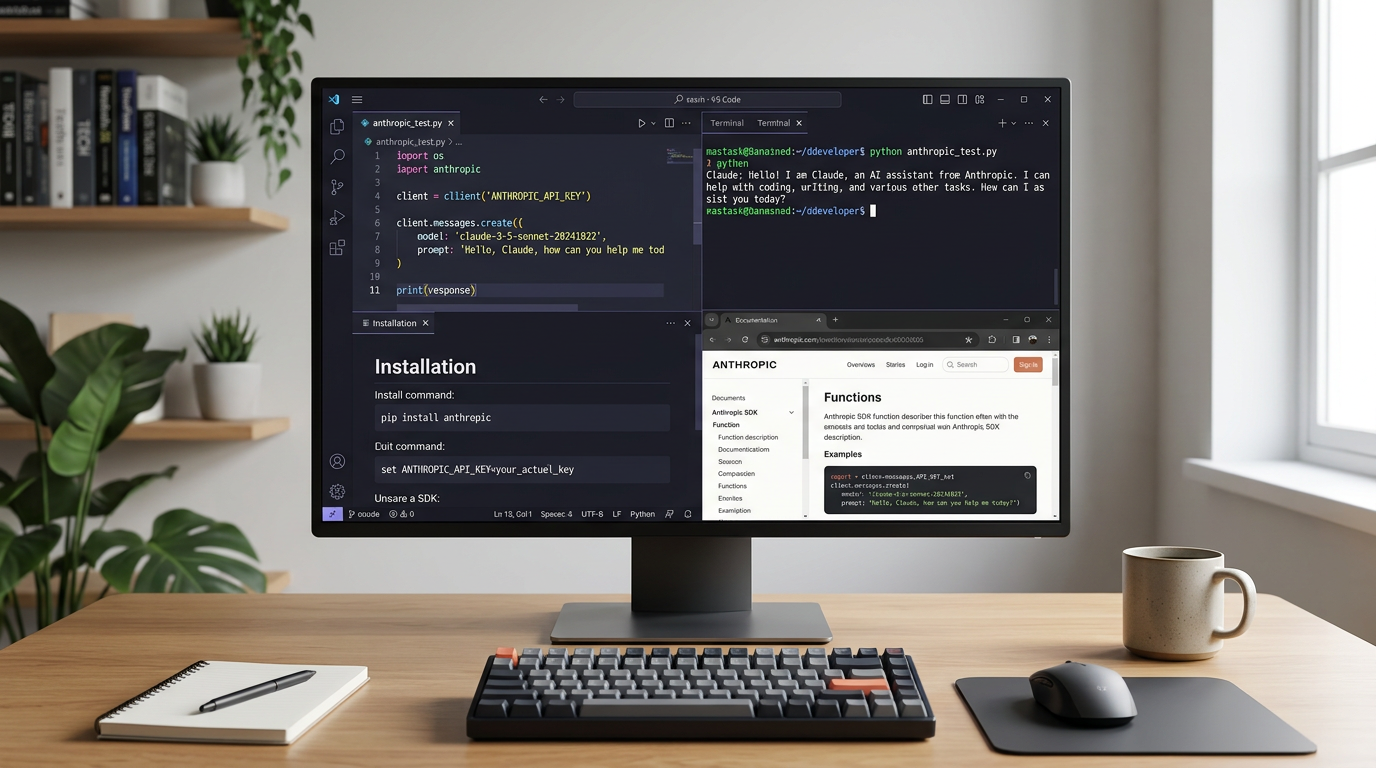
The Python SDK is one of the most beginner-friendly ways to access Claude programmatically.
Install the Official Python SDK
The Claude SDK for Python is published as the anthropic package on PyPI. Install it using pip:
pip install anthropicVerify your Python version meets the requirement (3.9 or later):
python --versionYour First Claude API Call with Python
Create a new file called test_claude.py and add this minimal working example based on the official SDK repository:
import anthropic

# Initialize the client (reads ANTHROPIC_API_KEY from environment)
client = anthropic.Anthropic()

# Create a message
message = client.messages.create(
    model="claude-3-5-sonnet-20241022",  # Check docs for latest model names
    max_tokens=1024,
    messages=[
        {"role": "user", "content": "Explain what an API is in one sentence."}
    ]
)

# Print the response
print(message.content)
Run your script:
python test_claude.pyIf everything is configured correctly, you’ll see Claude’s response printed to your terminal. This simple example demonstrates the core pattern: initialize a client, call messages.create() with your parameters, and handle the response.
Understanding the Code
anthropic.Anthropic()– Creates a client that automatically reads your API key from theANTHROPIC_API_KEYenvironment variablemodel– Specifies which Claude model to use (model names change over time; check the official Models reference for current options)max_tokens– Limits the length of the responsemessages– A list of conversation turns; each has arole(either "user" or "assistant") andcontent
Before relying on specific model names in production, always verify the latest available models through the Models API or official documentation, as Anthropic regularly releases new versions.
Method 2: Running Claude Code via CLI with cURL
If you don’t have Python installed or prefer working directly with HTTP requests, cURL provides a lightweight alternative.
Basic cURL Example
curl https://api.anthropic.com/v1/messages \
  --header "x-api-key: $ANTHROPIC_API_KEY" \
  --header "anthropic-version: 2023-06-01" \
  --header "content-type: application/json" \
  --data \
'{
  "model": "claude-3-5-sonnet-20241022",
  "max_tokens": 1024,
  "messages": [
    {"role": "user", "content": "Explain what an API is in one sentence."}
  ]
}'
This makes a direct POST request to the Messages API endpoint. The response will be JSON that you can parse or pipe to tools like jq for formatting.
Note on headers: The Claude API uses header-based authentication. The x-api-key header contains your API key, and anthropic-version specifies the API version you’re targeting. Before following installation steps or using specific header formats, check the latest official API documentation because these conventions may change.
Method 3: Installing and Using Claude Code
For the latest official details, see Anthropic Academy materials.
Claude Code is Anthropic’s official tool for developers integrating Claude into IDEs and development workflows.
Installing Claude Code via npm
According to the Anthropic Academy materials, Claude Code can be installed globally using npm:
npm install -g @anthropic-ai/claude-codeThis assumes you have Node.js and npm already installed on your system. Verify with:
node --version
npm --version
Integrating Claude Code into Your Workflow
Claude Code is designed to integrate into IDEs and connect to cloud providers, bridging AI assistance directly into your coding environment. The exact command syntax and usage patterns for invoking Claude Code tasks from the terminal should be confirmed in the official Claude Code documentation, as detailed CLI examples weren’t fully available in basic overview materials.
Once installed, Claude Code can help with tasks like:
- Code generation and completion
- Debugging assistance
- Automated refactoring
- Integration with cloud development workflows
For detailed usage instructions specific to your IDE or workflow, consult the official Anthropic Academy materials and Claude Code integration guides.
Method 4: Using the Claude Console Workbench (GUI)
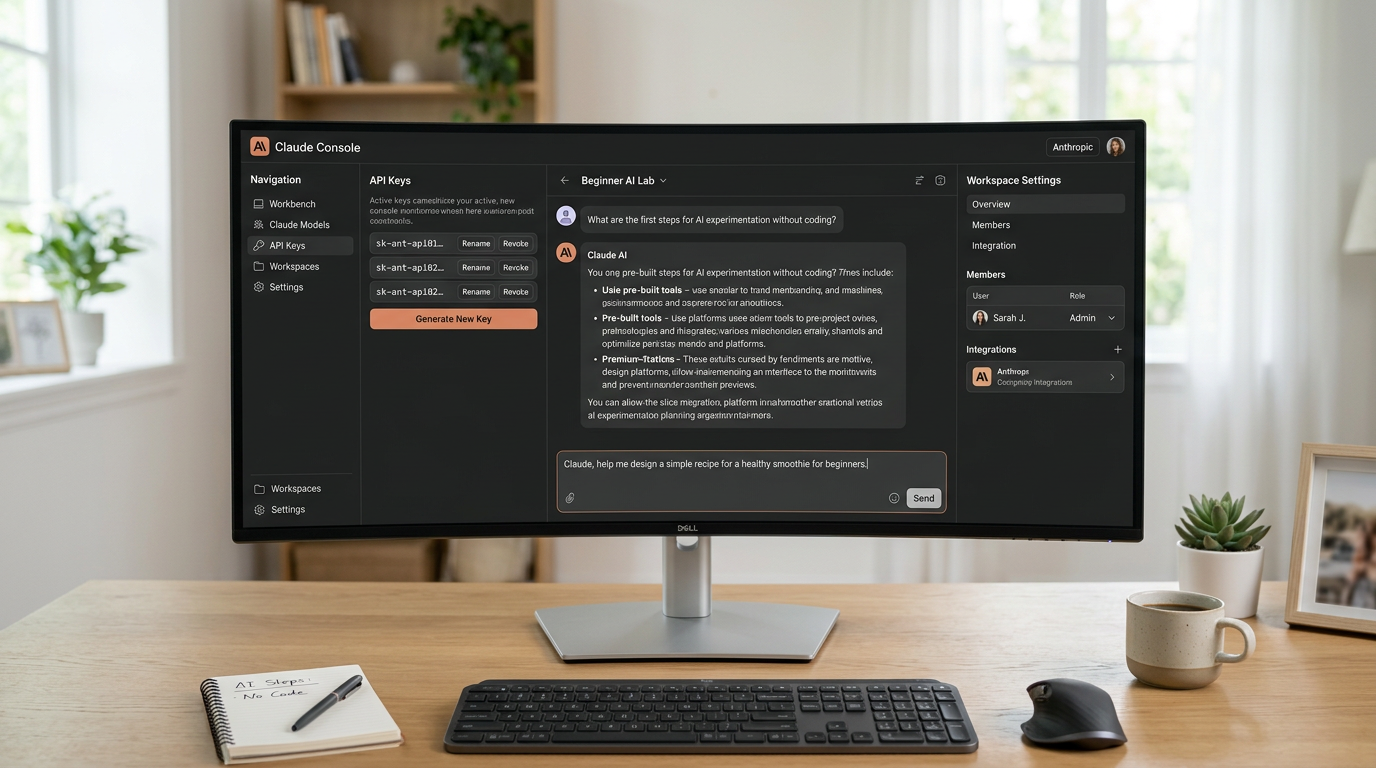
For beginners uncomfortable with the command line, the Claude Console Workbench provides a fully graphical way to interact with Claude.
Accessing the Workbench
- Log into your Claude Console account
- Navigate to the Workbench section (usually prominently displayed in the main dashboard)
- You’ll see a chat-like interface where you can type prompts and receive responses
Why Use the Workbench?
The Workbench is ideal for:
- Experimentation – Test prompts and see responses without writing code
- Prototyping – Develop and refine prompts before integrating them into scripts
- Learning – Understand how Claude responds to different inputs before automating workflows
- Management – Monitor your API usage, manage workspaces, and generate new API keys all in one interface
The Workbench essentially provides a GUI wrapper around the same Messages API you’d call via CLI, making it perfect for visual learners or quick testing.
Practical Example: Building a Simple Automation Script
Let’s combine what you’ve learned into a practical automation use case—a Python script that summarizes text files using Claude.
import anthropic
import sys

def summarize_file(file_path):
    # Read the file content
    with open(file_path, 'r') as f:
        content = f.read()

    # Initialize Claude client
    client = anthropic.Anthropic()

    # Request a summary
    message = client.messages.create(
        model="claude-3-5-sonnet-20241022",
        max_tokens=500,
        messages=[
            {
                "role": "user",
                "content": f"Please summarize this text in 2-3 sentences:\n\n{content}"
            }
        ]
    )

    return message.content[0].text

if __name__ == "__main__":
    if len(sys.argv) < 2:
        print("Usage: python summarize.py <file_path>")
        sys.exit(1)

    file_path = sys.argv[1]
    summary = summarize_file(file_path)
    print(f"Summary:\n{summary}")
Save this as summarize.py and run it:
python summarize.py document.txtThis example demonstrates how to integrate Claude into real workflows, reading input from files and processing it with AI. You could extend this pattern to batch-process multiple files, integrate with n8n workflows, or trigger summaries on file uploads.
Common Beginner Mistakes and How to Avoid Them
Mistake 1: Hardcoding API Keys
Problem: Putting API keys directly in code files that get committed to version control.
Solution: Always use environment variables or secure configuration files excluded from version control (add .env to your .gitignore).
Mistake 2: Ignoring Rate Limits
Problem: Making too many API calls too quickly, causing requests to fail.
Solution: Check the official rate limit documentation for your account tier. Implement delays between requests in loops and monitor response headers for rate limit information.
Mistake 3: Using Outdated Model Names
Problem: Hardcoding model names that become deprecated over time.
Solution: Regularly check the Models API or official models list for current options. Consider making model names configurable rather than hardcoded.
Mistake 4: Not Handling Errors
Problem: Scripts crash when API calls fail due to network issues, invalid requests, or quota limits.
Solution: Add proper error handling:
try:
    message = client.messages.create(...)
except anthropic.APIError as e:
    print(f"API error occurred: {e}")
except Exception as e:
    print(f"Unexpected error: {e}")
Mistake 5: Exceeding Token Limits
Problem: Sending prompts or expecting responses that exceed model token limits, causing truncation or errors.
Solution: Use the Token Counting API to check token usage before making calls, and set appropriate max_tokens values based on your needs.
Understanding Costs and Rate Limits
Claude API usage typically involves costs based on token consumption (both input tokens you send and output tokens Claude generates). While specifics change over time:
- Check current pricing: Visit the official Anthropic pricing page for up-to-date per-token costs and any free tier allowances
- Monitor usage: Use the Console dashboard to track your spending and usage patterns
- Start small: Test with short prompts and low
max_tokensvalues while learning - Use token counting: The Token Counting API endpoint lets you calculate costs before making actual calls
Rate limits define how many requests you can make per minute or per day. These vary by account tier and may include:
- Requests per minute (RPM)
- Tokens per minute (TPM)
- Tokens per day (TPD)
When you hit a rate limit, the API will return an error. Confirm the current rate limit details from the official rate limit documentation section, as numeric limits are subject to change.
Frequently Asked Questions
Do I need to pay to use Claude’s API?
API access typically involves usage-based pricing. Check the current pricing page for details on any free tier credits for new accounts, per-token costs, and billing requirements. Some features may require payment method registration even if you’re staying within free allowances.
Can I use Claude Code on Windows, Mac, and Linux?
The Python SDK and Claude Code (via npm) should work on standard development environments across major operating systems, though exact support details may vary. If you encounter platform-specific issues, consult the SDK-specific documentation or community forums.
What’s the difference between using the Console and the API?
The Console Workbench provides a GUI for interactive use and testing, while the API allows programmatic access for automation, integration, and scaling. Many developers use the Console for prototyping and the API for production workflows.
How do I know which Claude model to use?
Model choice depends on your needs for speed, cost, and capability. Generally, newer versions (like Claude 3.5) offer improved performance. The official documentation provides comparisons between models like Opus (most capable), Sonnet (balanced), and Haiku (fastest/cheapest). Check the Models reference for current recommendations rather than relying on dated advice.
Can I integrate Claude into n8n or other automation tools?
Yes! With API access, you can call Claude from any tool that supports HTTP requests or JavaScript/Python execution. Many automation platforms including n8n have dedicated Claude nodes or allow custom API calls.
What if my API key stops working?
API keys can be revoked from the Console. If calls suddenly fail with authentication errors, check that your key is still active in Account Settings and that you haven’t exceeded rate limits or exhausted your account balance.
Next Steps: Building AI Automation Workflows
Now that you can run Claude code through both CLI and GUI methods, you’re ready to build more advanced workflows:
- Automate content tasks: Create scripts that process multiple documents, generate reports, or draft emails based on templates
- Integrate with n8n: Use Claude API nodes in n8n workflows to add AI capabilities to your automations
- Build chatbots: Combine Claude with messaging platform APIs to create custom AI assistants
- Develop with IDE integration: Explore Claude Code’s full capabilities by integrating it into VS Code or other IDEs
- Experiment with different models: Test how different Claude versions handle your specific use cases to optimize for cost and performance
Before building production workflows, review the official API reference for advanced features like streaming responses, system prompts, and message batches. The Claude Platform documentation hub and Anthropic Academy provide comprehensive guides for developers ready to go beyond the basics.
Conclusion: Your Claude Code Tutorial Journey
This Claude code tutorial walked you through multiple approaches to running Claude AI: from the beginner-friendly GUI Workbench to CLI methods using Python SDKs, cURL, and Claude Code. You’ve learned how to securely manage API keys, make your first successful API calls, and understand the different access methods Anthropic provides.
Whether you’re building automation workflows, experimenting with AI-assisted coding, or integrating Claude into existing applications, you now have the foundation to move forward confidently. Remember to check the latest official documentation regularly, as Claude’s capabilities and tools continue to evolve.
Start with the method that matches your comfort level—GUI for exploration, Python SDK for scripting, or Claude Code for development workflows—and gradually expand your skills as you build more sophisticated AI-powered tools.
Enjoyed this article?