Claude Code Tutorial: Getting Started with Installation and Basics
If you’ve heard about using Claude for coding tasks and want to get started, you’re in the right place. This Claude code tutorial will walk you through everything you need to know as a beginner—from understanding what "Claude code" actually means to setting up your first working environment and generating your first piece of code.
Whether you’re a developer exploring AI-assisted coding, a no-code builder curious about automation, or a technical beginner ready to experiment with large language models, this guide will help you take your first steps confidently.
Important note: AI tools and their documentation evolve rapidly. While this tutorial covers the fundamental workflow for getting started with Claude for coding purposes, always check the latest official Anthropic documentation to confirm current setup methods, pricing, and features.
What Does "Claude Code" Actually Mean?
Before diving into installation and setup, let’s clarify what people mean when they search for "Claude code."
"Claude code" isn’t an official product name from Anthropic. Instead, it’s a practical term people use to describe several related workflows:
- Using Claude to generate code through the chat interface at claude.ai
- Integrating Claude API into your applications to automate code generation
- Using Claude through SDKs (Software Development Kits) in Python, TypeScript, or other languages
- Working with Claude in development environments like VS Code or command-line tools
- Building automation workflows that use Claude’s AI capabilities for coding tasks
For this beginner tutorial, we’ll focus on the most accessible starting point: using Claude’s API through a simple SDK setup. This approach gives you practical, programmable access to Claude’s coding assistance capabilities without requiring complex infrastructure.
This foundation will prepare you for more advanced workflows in future tutorials, including n8n integrations, Docker deployments, and full automation pipelines.
Who This Tutorial Is For
This Claude code beginner guide is designed for:
- Developers who want to integrate AI assistance into their coding workflow
- No-code builders ready to explore API-based automation
- Tech-savvy beginners comfortable with basic command-line operations
- Anyone curious about practical AI coding tools beyond chat interfaces
You don’t need expert-level programming skills, but you should be comfortable:
- Opening a terminal or command prompt
- Running basic commands
- Working with a text editor
- Understanding basic programming concepts (variables, functions, API calls)
Prerequisites and What You’ll Need
Before starting this Claude code setup, gather these essentials:
Required
- A computer running Windows, macOS, or Linux
- Internet connection for API access
- An Anthropic account (you’ll need to create one if you don’t have it)
- A text editor or IDE (VS Code, Sublime Text, or even Notepad++ works)
- Basic programming environment (Python 3.7+ or Node.js 16+ installed)
Helpful But Optional
- Basic understanding of APIs (don’t worry, we’ll explain as we go)
- Familiarity with environment variables
- Experience with package managers like pip or npm
Cost Considerations
As of mid-2026, Claude’s API operates on a pay-as-you-go model. While specific pricing changes over time, here’s what beginners should know:
- You’ll typically need to add payment information to your Anthropic account
- API usage is metered by tokens (roughly 4 characters = 1 token)
- Small experiments and learning projects typically cost very little (often under $1)
- Anthropic provides usage dashboards to monitor costs in real-time
Before proceeding: Check Anthropic’s current pricing page and free tier availability, as these details may have changed since this tutorial was written.
How to Install Claude Code: Setting Up Your Environment
Let’s walk through the Claude code setup steps that will get you from zero to your first API call.

Step 1: Create Your Anthropic Account
First, you need access to Claude’s API:
- Visit the official Anthropic website
- Look for "API" or "Developers" section
- Sign up for an account or log in if you already have one
- Navigate to the API console or dashboard
- Complete any required verification steps
Step 2: Generate Your API Key
Your API key is your authentication credential for accessing Claude programmatically:
- In the Anthropic console, find the "API Keys" section
- Click "Create New Key" or similar button
- Give your key a descriptive name (like "learning-project")
- Copy the key immediately—it typically won’t be shown again
- Store it securely (never commit API keys to public repositories)
Security reminder: Treat API keys like passwords. Never share them publicly or include them directly in your code files that might be shared or published.
Step 3: Choose Your Programming Language
For this tutorial, we’ll use Python as our primary example because it’s beginner-friendly and widely used for AI automation workflows. If you prefer JavaScript/TypeScript, the concepts translate directly.
Verify Python is installed on your system:
python --versionor
python3 --versionYou should see Python 3.7 or higher. If not, download Python from the official Python website before continuing.
Step 4: Install the Anthropic SDK
The SDK (Software Development Kit) provides pre-built functions that make working with Claude’s API much easier than making raw HTTP requests.
Open your terminal or command prompt and run:
pip install anthropicor if you need to specify Python 3:
pip3 install anthropicTroubleshooting tip: If you get a "command not found" error, you may need to install pip first or use your system’s package manager. On some systems, you might need to use python -m pip install anthropic instead.
Step 5: Set Up Your API Key Securely
Rather than putting your API key directly in code files, use environment variables:
On macOS/Linux:
export ANTHROPIC_API_KEY='your-api-key-here'To make this permanent, add it to your .bashrc, .zshrc, or equivalent shell configuration file.
On Windows (Command Prompt):
set ANTHROPIC_API_KEY=your-api-key-hereOn Windows (PowerShell):
$env:ANTHROPIC_API_KEY="your-api-key-here"For permanent setup on Windows, use System Environment Variables through the Control Panel.
Step 6: Verify Your Installation
Create a simple test to confirm everything works. Create a new file called test_claude.py:
import os
from anthropic import Anthropic

# Initialize the client
client = Anthropic(api_key=os.environ.get("ANTHROPIC_API_KEY"))

# Make a simple test call
message = client.messages.create(
    model="claude-3-sonnet-20240229",
    max_tokens=100,
    messages=[
        {"role": "user", "content": "Say hello in exactly 5 words."}
    ]
)

print(message.content)
Run this file:
python test_claude.pyIf you see a response from Claude, congratulations! Your setup is working correctly.
Common installation errors:
- Authentication error: Double-check your API key is set correctly in environment variables
- Module not found: Confirm the anthropic package installed successfully
- Connection error: Verify your internet connection and that no firewall is blocking API access
Your First Claude Code Example: Generate a Function
Now that your environment is set up, let’s do something practical: using Claude to generate actual code.
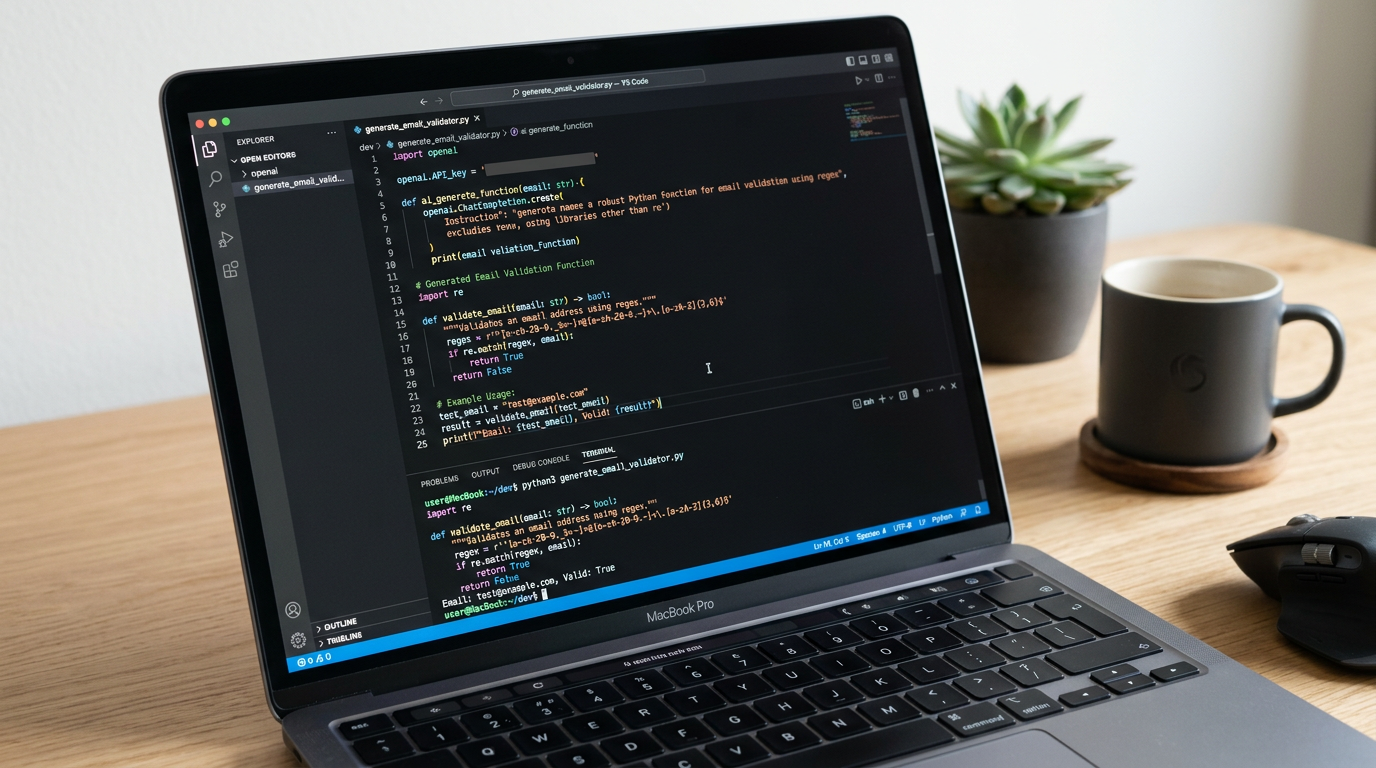
This example shows how to ask Claude to write a specific function and then use the generated code:
import os
from anthropic import Anthropic

# Initialize
client = Anthropic(api_key=os.environ.get("ANTHROPIC_API_KEY"))

# Request code generation
message = client.messages.create(
    model="claude-3-sonnet-20240229",
    max_tokens=1024,
    messages=[
        {
            "role": "user",
            "content": "Write a Python function that validates whether an email address is properly formatted. Include docstring and basic error handling."
        }
    ]
)

# Extract and display the generated code
print("Generated Code:")
print(message.content[0].text)
When you run this, Claude will generate a complete function with documentation. Here’s what makes this powerful:
- Instant expertise: You get well-structured code without memorizing syntax
- Learning tool: Study the generated code to understand patterns and best practices
- Productivity boost: Quickly prototype functions and get working examples
- Iteration friendly: You can refine your prompt and regenerate until it fits your needs
Understanding Claude Code Basics for Developers
Let’s break down the fundamental concepts you’ll use regularly when working with Claude for coding tasks.
The Message Structure
Claude uses a conversation-based API. Each interaction follows this pattern:
- Model selection: Choose which Claude model to use (different models have different capabilities and costs)
- Max tokens: Set an upper limit on the response length (controls cost and prevents runaway responses)
- Messages array: Your conversation history, with alternating "user" and "assistant" roles
Crafting Effective Prompts for Code
Getting good code from Claude depends heavily on how you ask. Here are beginner-friendly patterns:
Be specific about language and requirements:
"Write a JavaScript function that converts Celsius to Fahrenheit, includes input validation, and returns null for invalid inputs."Ask for complete, usable code:
"Create a complete Python script that reads a CSV file, calculates the average of a numeric column, and handles file-not-found errors."Request explanations alongside code:
"Write a function to check if a number is prime, and explain how the algorithm works in comments."Managing API Costs and Token Usage
Every API call consumes tokens, which translates to costs:
- Input tokens: Your prompt and conversation history
- Output tokens: Claude’s response
- Token estimation: Roughly 4 characters = 1 token, but this varies
Monitor your usage through the Anthropic console dashboard. For learning and small projects, costs are typically minimal, but keep an eye on your usage as you experiment.
Working With Generated Code
When Claude generates code for you:
- Always review it: AI-generated code should be understood, not blindly trusted
- Test it thoroughly: Run the code with different inputs to verify behavior
- Iterate if needed: Refine your prompt if the first result isn’t quite right
- Learn from it: Study the patterns and techniques Claude uses
- Integrate carefully: Consider how generated code fits into your larger project
Common Beginner Mistakes and How to Avoid Them
As you start working with Claude for coding tasks, watch out for these pitfalls:
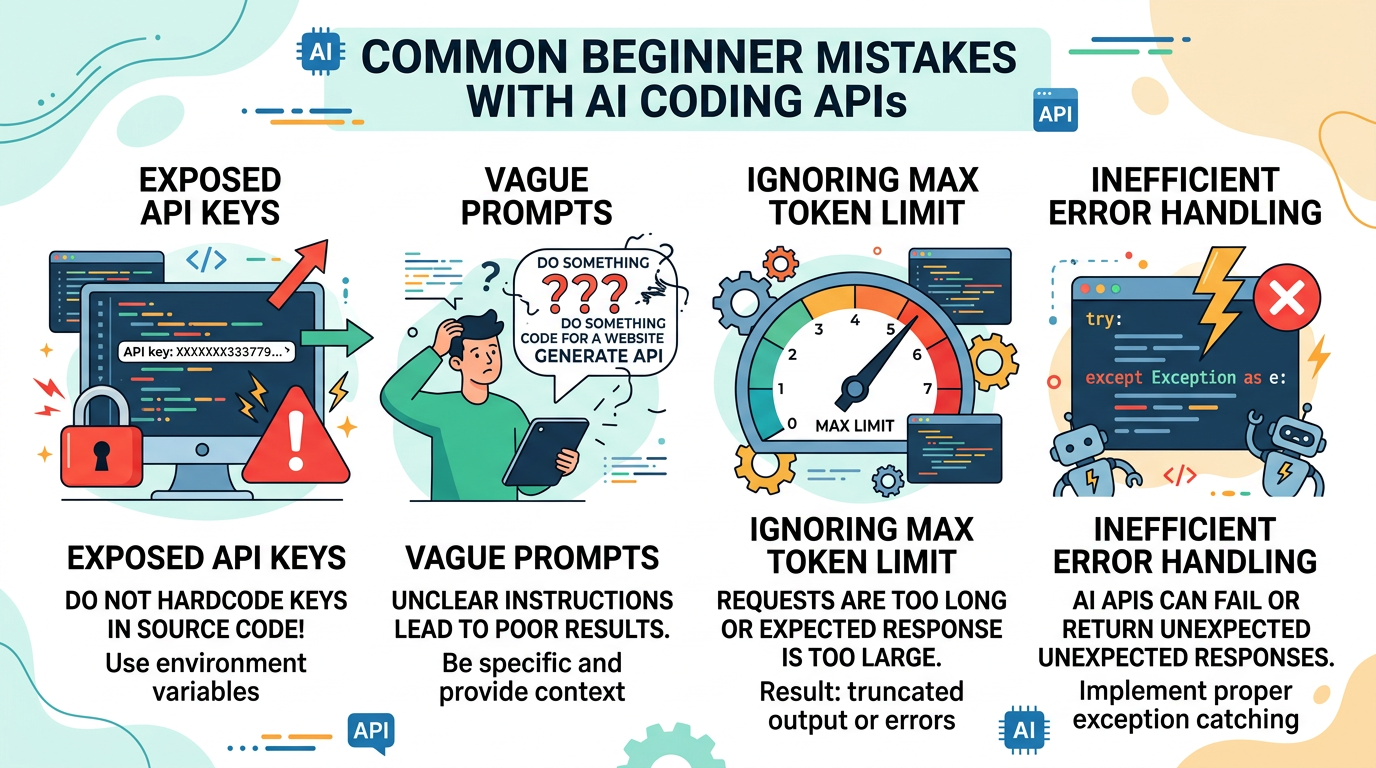
Mistake 1: Exposing API Keys
The problem: Putting API keys directly in code files, then accidentally committing them to GitHub or sharing them.
The solution: Always use environment variables and add API key files to .gitignore if you must store them locally.
Mistake 2: Vague Prompts
The problem: Asking "write me a function" without specifying language, purpose, or requirements.
The solution: Include language, clear purpose, expected inputs/outputs, and any constraints in your prompt.
Mistake 3: Not Setting Token Limits
The problem: Forgetting to set max_tokens, potentially resulting in unexpectedly long (and expensive) responses.
The solution: Always set reasonable max_tokens values based on what you actually need.
Mistake 4: Ignoring Error Handling
The problem: Not wrapping API calls in try-except blocks, leading to crashes when network issues occur.
The solution: Always handle potential exceptions:
try:
    message = client.messages.create(...)
except Exception as e:
    print(f"API call failed: {e}")
Mistake 5: Using Outdated Model Names
The problem: API model names change as new versions release; old names may stop working.
The solution: Check current model availability in official documentation regularly and update your code accordingly.
Frequently Asked Questions
Do I need a paid account to use Claude’s API?
As of mid-2026, API access typically requires payment information on file, though small usage amounts are very affordable. Check Anthropic’s current pricing and any available free tiers directly on their website.
What’s the difference between claude.ai (the chat interface) and the API?
The chat interface is for interactive conversations. The API lets you integrate Claude’s capabilities programmatically into applications, scripts, and automation workflows.
Which programming language is best for Claude code beginners?
Python and JavaScript/TypeScript are most common and have official SDK support. Choose whichever you’re more comfortable with—the concepts are nearly identical.
Can I use Claude Code with n8n or other automation tools?
Absolutely! Once you understand the basic API workflow, you can integrate it into n8n workflows, Docker containers, or any automation platform that supports HTTP requests or has Claude/Anthropic nodes.
How do I know if my API call succeeded?
Check the response object. Successful calls return message content; failed calls raise exceptions. Always implement error handling to catch issues gracefully.
What are rate limits and will I hit them as a beginner?
Rate limits restrict how many API calls you can make per minute/hour. As a beginner experimenting with small projects, you’re unlikely to hit rate limits. Check current limits in Anthropic’s official documentation.
Can I use Claude offline?
No. Claude’s API requires an internet connection because the AI model runs on Anthropic’s servers, not your local machine.
Is my code shared with Anthropic when I use the API?
Review Anthropic’s privacy policy and terms of service for current data handling practices. Generally, be mindful about what information you send through any API.
Next Steps in Your Claude Code Journey
Congratulations! You’ve completed this Claude code introduction and now have:
- A working Anthropic API setup with proper authentication
- Understanding of how to make basic API calls
- Your first code generation example working
- Knowledge of common mistakes to avoid
- Foundation concepts for Claude-assisted coding
Where to go from here:
This is Episode 1 in our series. In upcoming tutorials, we’ll cover:
- Episode 2: Advanced prompt engineering for better code generation
- Episode 3: Integrating Claude into n8n automation workflows
- Episode 4: Building a code review assistant with Claude API
- Episode 5: Deploying Claude-powered tools with Docker
Immediate practice recommendations:
- Experiment with different prompts: Try generating functions in various languages
- Build a small utility: Create a script that solves a real problem using Claude’s help
- Explore the official documentation: Familiarize yourself with all available API parameters
- Join the community: Look for Anthropic developer communities to share learnings and get help
- Track your usage: Monitor the dashboard to understand your actual costs and usage patterns
Remember: The best way to learn is by doing. Start small, experiment frequently, and gradually increase complexity as you become more comfortable.
Before moving to more advanced topics, make sure you’re confident with this foundational workflow. The concepts you’ve learned here—API authentication, prompt crafting, response handling—apply to nearly every AI automation task you’ll build in the future.
Keep this tutorial bookmarked as a reference, and don’t hesitate to revisit these basics whenever you’re setting up a new environment or helping someone else get started. Happy coding!
Enjoyed this article?