
Introduction to Claude Developer Platform: A Beginner’s Guide with Practical API Workflows
Focus keyword: Claude Developer Platform
If you’re looking to build AI automation workflows, custom applications, or intelligent agents, you’ve probably heard about Claude. But what exactly is the Claude Developer Platform, and how do you actually use it to build something practical?
In this beginner-friendly guide, you’ll learn what the Claude Platform is, how it differs from ChatGPT and other AI APIs, and most importantly—how to make your first API call and build a working automation workflow. By the end of this tutorial, you’ll have hands-on experience with the Claude API and understand how to integrate it into your projects.
What is Claude Platform?
For the latest official details, see Anthropic’s official developer platform.
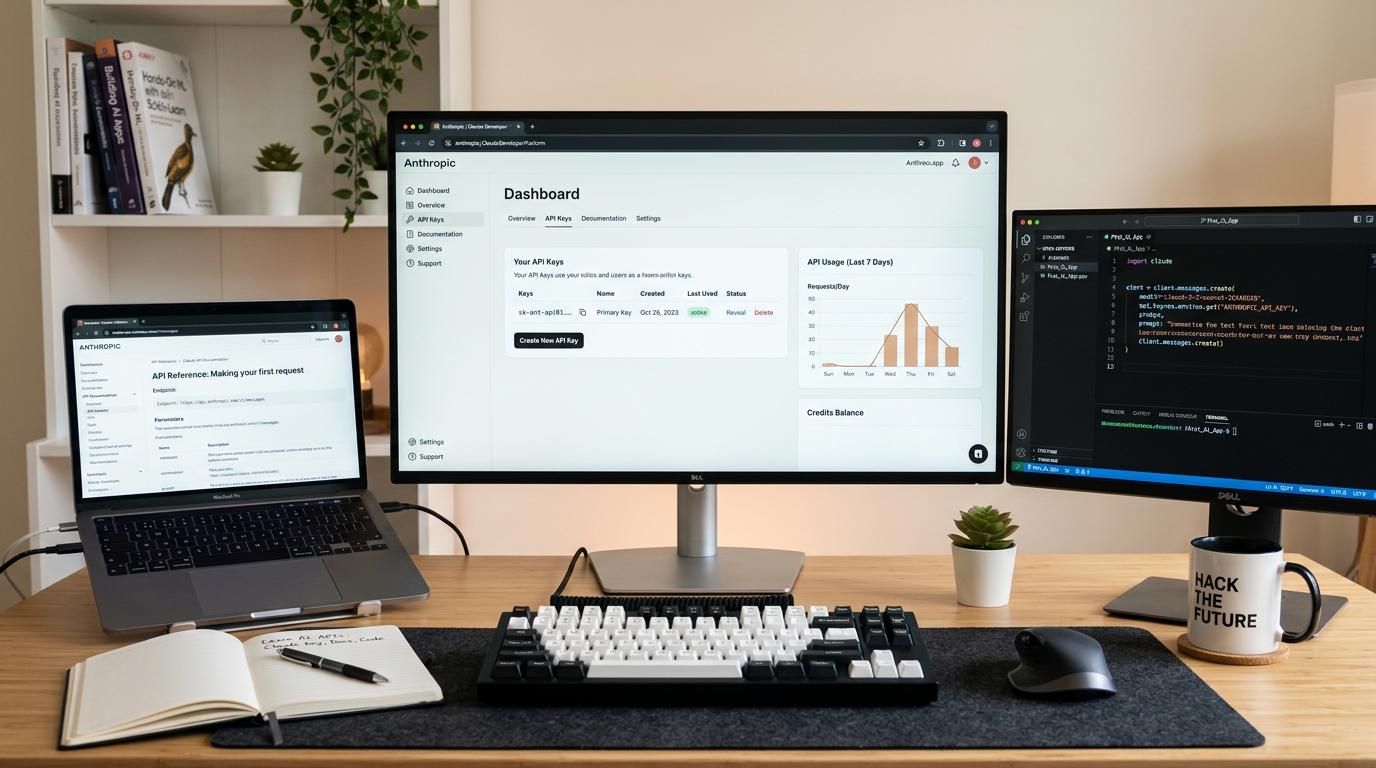
Claude Platform is Anthropic’s official developer platform for building applications and agents using Claude AI models. It’s important to understand that Claude Platform is different from Claude.ai (the consumer chat interface you might have used in your browser).
Think of it this way:
- Claude.ai = Chat interface for conversations (like ChatGPT’s website)
- Claude Platform = Developer tools for building applications with Claude’s AI capabilities
The Claude Platform gives you everything needed to integrate Claude into your applications: the Claude API, official client SDKs (software development kits), and the Claude Console—a web dashboard where you manage API keys, test prompts, and monitor usage.
When you build with Claude Platform, you’re accessing Claude programmatically through API calls, which means you can:
- Automate content generation and summarization
- Extract structured data from unstructured text
- Build chatbots and customer service tools
- Create custom AI agents that perform specific tasks
- Integrate AI capabilities into existing workflows (n8n, Make, WordPress, custom apps)
Claude Platform vs Claude Platform on AWS
There are actually two ways to access Claude Platform:
- Native Claude Platform (platform.claude.com) – Uses Anthropic’s own billing and authentication
- Claude Platform on AWS – Uses AWS billing and IAM authentication for teams already using AWS infrastructure
This tutorial focuses on the native Claude Platform, which is the most straightforward path for beginners.
Who This Tutorial Is For
This guide is designed for:
- Developers who want to add AI capabilities to their applications
- No-code builders using tools like n8n or Make who want to understand the API they’re connecting to
- Tech-savvy beginners comfortable with basic programming concepts but new to AI APIs
- Anyone who’s used ChatGPT’s API and wants to understand how Claude compares
You don’t need to be an expert programmer, but basic familiarity with APIs (knowing what an API is and how they work conceptually) will help you follow along.
Claude vs GPT: Key Differences for Developers
Before diving into setup, let’s address a common question: how does Claude Platform compare to OpenAI’s GPT API?
When to consider Claude:
- You need longer context windows for processing large documents
- You want strong performance on analysis and reasoning tasks
- You prefer Anthropic’s approach to AI safety and model behavior
- You’re looking for alternatives to diversify your AI infrastructure
Key architectural similarities:
- Both offer RESTful APIs with similar request/response patterns
- Both provide official SDKs for common programming languages
- Both use token-based pricing models
- Both support streaming responses and structured outputs
The practical takeaway: If you’ve worked with GPT’s API, you’ll find Claude’s API familiar in structure. The main differences are in model capabilities, pricing, and specific features. Many developers use both platforms depending on the task.
Before committing to either platform, check the current official pricing pages and model documentation, as capabilities and costs evolve regularly.
Getting Started with Claude API: Account Setup
Here’s how to get set up with Claude Platform:

Step 1: Create Your Account
- Go to platform.claude.com (the Claude Console)
- Sign in or create a new account
- Complete any required verification steps
The exact account creation process may vary, so follow the current prompts in the console. Some regions or account types may have specific requirements.
Step 2: Get Your API Key
Once you’re logged into the Claude Console:
- Navigate to the API Keys section (typically found in the console dashboard)
- Click to generate a new API key
- Important: Copy your API key immediately and store it securely—treat it like a password
- Never share your API key publicly or commit it to version control
Your API key is how you authenticate your requests to the Claude API. Keep it in a secure location like an environment variable or password manager.
Step 3: Review Usage Limits
Before you start making API calls, check your account’s rate limits and any trial credits or tier restrictions in the Claude Console. This prevents surprises when testing your workflows.
Note that rate limits, free tier availability, and trial credits may change, so verify the current terms in the console or official documentation before building production workflows.
Understanding the Messages API
The core of Claude Platform is the Messages API—this is how you send prompts to Claude and receive responses.
Every API request you make follows this basic pattern:
- You send a request containing your prompt (called "messages") and configuration parameters
- Claude processes your request using the model you specified
- You receive a response with Claude’s generated text
The Messages API uses standard HTTP requests, which means you can interact with it using:
- Direct HTTP calls (curl, Postman)
- Official SDKs (Python, JavaScript/TypeScript, and others)
- Automation tools (n8n, Make, Zapier)
- Custom applications in virtually any programming language
Your First Claude API Call
For the latest official details, see Claude Platform quickstart guide.
Let’s make your first API call. Before finalizing your exact code, check the official Claude Platform quickstart guide for the current API base URL, authentication header format, and request schema, as these technical details can change.
Example: Simple Text Generation
Here’s the conceptual structure of a basic API call (verify syntax in the current docs):
What you’ll need:
- Your API key
- The Messages API endpoint
- A model name (you’ll choose from available models like Claude 3 Sonnet, Opus, or Haiku variants)
Basic request structure:
POST to Messages API endpoint
Header: Authentication with your API key
Header: API version (if required)
Body: {
  "model": "[current-model-name]",
  "messages": [
    {
      "role": "user",
      "content": "Explain quantum computing in simple terms"
    }
  ],
  "max_tokens": 1024
}
What each part means:
model: Specifies which Claude model to use (check the current model list in the docs)messages: An array containing your conversation—each message has a role ("user" or "assistant") and contentmax_tokens: Limits how long Claude’s response can be (affects cost)
Before running your first call, install an official SDK if you’re using Python, JavaScript, or another supported language. The official installation commands and package names are in the Claude Platform docs under "Install an SDK."
Choosing a Model
As of this writing, Claude Platform offers several models with different capabilities and price points. Before selecting a model, check the current model cards in the official documentation for:
- Available model names and their exact identifiers
- Context window sizes (how much text each model can process)
- Performance characteristics
- Current pricing per token
For beginners testing the API, start with a mid-tier model that balances cost and capability.
Practical Claude Developer Platform Workflows
Now let’s look at a real automation use case: content summarization.
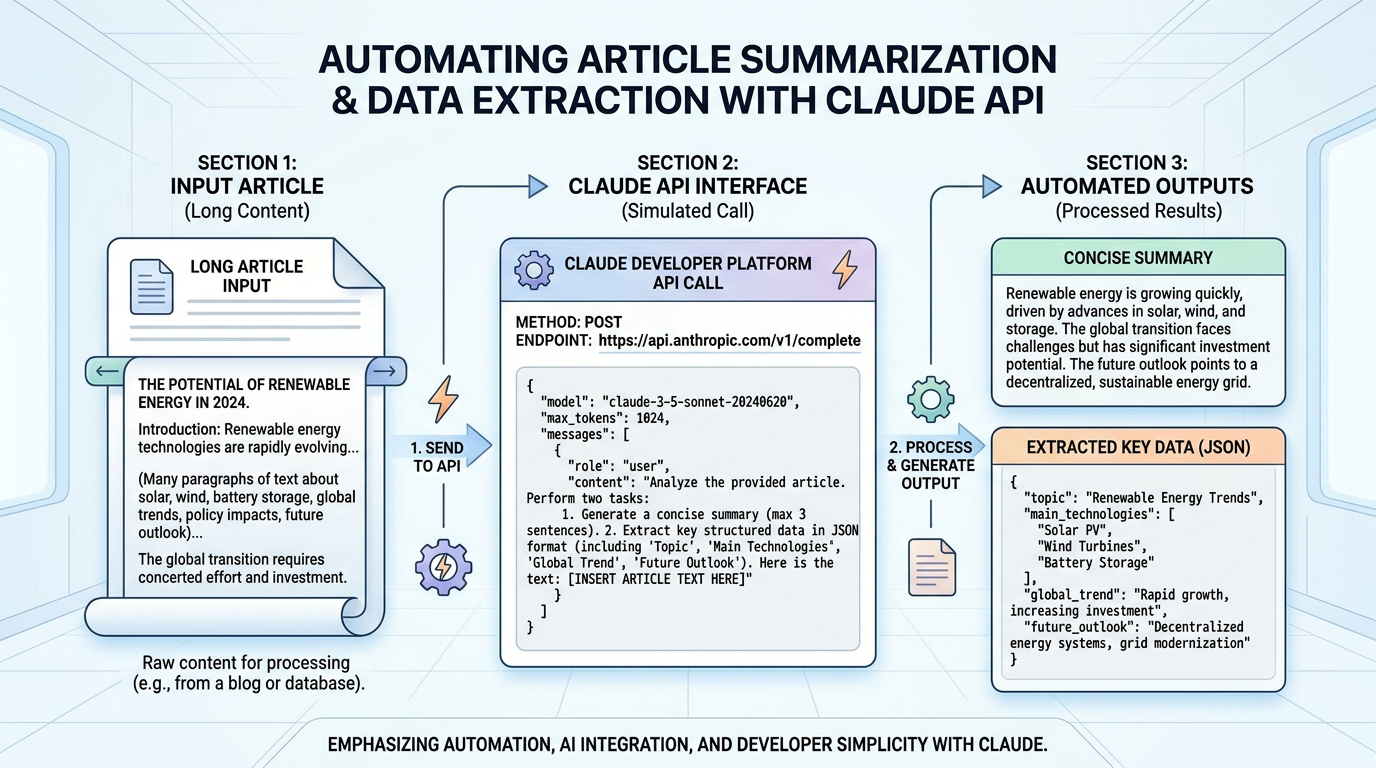
Example Workflow: Article Summarization
Use case: Automatically summarize long articles or documents for a newsletter or content curation workflow.
How it works:
- Input: A long article text (paste directly or fetch from a URL)
- Process: Send the article to Claude via the Messages API with a summarization prompt
- Output: Receive a concise summary
Sample prompt structure:
{
  "model": "[current-model-name]",
  "messages": [
    {
      "role": "user",
      "content": "Summarize the following article in 3 bullet points:\n\n[article text here]"
    }
  ],
  "max_tokens": 500
}
Why this workflow is useful:
- Saves time reading lengthy content
- Creates consistent summary formats
- Can be automated to run on schedules (via n8n, Make, or custom scripts)
- Scales to process hundreds of articles without manual work
Integration possibilities:
- Connect to RSS feeds to summarize new articles automatically
- Process customer feedback forms and extract key themes
- Generate executive summaries of reports
- Create newsletter digests from multiple sources
Example Workflow: Data Extraction
Another common use case is extracting structured information from unstructured text.
Use case: Parse contact information from email signatures or form submissions.
Sample prompt approach:
Extract the following information from the text below and return as JSON:
- Name
- Email
- Phone
- Company

Text:
[paste unstructured text here]
Claude can return structured data that you can then feed into databases, CRMs, or other automation steps.
Common Beginner Mistakes and Troubleshooting
Authentication Errors
Problem: "Invalid API key" or "Unauthorized" responses Solution:
- Verify you copied the entire API key without extra spaces
- Check that you’re using the correct authentication header format
- Ensure your API key hasn’t been revoked in the Console
Rate Limit Issues
Problem: "Rate limit exceeded" errors Solution:
- Check your current rate limits in the Console
- Space out your requests if testing repeatedly
- Consider upgrading your tier if you need higher limits
- Implement exponential backoff retry logic in production code
Malformed Requests
Problem: "Invalid request" or schema validation errors Solution:
- Double-check the request structure against the current API reference
- Ensure the
messagesarray is properly formatted with role and content - Verify you’re using a valid model name from the current model list
Unexpected Costs
Problem: Higher-than-expected usage bills Solution:
- Set
max_tokenslimits on responses - Monitor usage in the Claude Console regularly
- Understand pricing is based on both input and output tokens
- Test with smaller inputs before scaling up
Frequently Asked Questions
Do I need a credit card to get started? Check the current terms in the Claude Console. Some accounts offer trial credits; others may require payment information upfront. Policies change, so verify before signing up.
Which programming languages can I use? Claude Platform provides official SDKs for several languages (commonly Python and JavaScript/TypeScript, among others). Check the official documentation for the complete current list. You can also use any language that can make HTTP requests.
Can I use Claude API with no-code tools? Yes. Tools like n8n, Make, and Zapier support HTTP requests and may have dedicated Claude API nodes. You’ll still use the same API keys and request structure.
How do I estimate costs for my project?
- Check the official pricing page for current per-token costs
- Estimate your average input length (in tokens; roughly 1 token ≈ 4 characters)
- Estimate your average output length
- Multiply by expected monthly volume
- Remember both input and output tokens are billed
Is there a playground or testing environment? Yes—the Claude Console includes the Workbench, which lets you test prompts and experiment with models without writing code. This is a great way to refine prompts before integrating them into your workflows.
Next Steps with Claude Platform
You now understand what the Claude Platform is, how it differs from consumer chat interfaces and competing APIs, and how to make your first API call. Here’s how to continue learning:
- Explore the official documentation at the Claude Platform docs for detailed API references, advanced features like tool use, vision capabilities, and prompt caching
- Experiment in the Workbench to understand how different prompts affect Claude’s responses before coding them
- Review the official model cards to understand which models best fit your use cases and budget
- Check the release notes and changelog to stay updated on new features and capabilities
- Integrate with automation tools like n8n or Make if you’re building no-code workflows
- Join developer communities to see how others are building with Claude Platform
Remember to always verify technical details like API endpoints, model names, pricing, and rate limits against the current official documentation before deploying to production. The Claude Platform evolves quickly, and staying current will help you avoid errors and take advantage of new capabilities.
The Claude Developer Platform gives you powerful AI capabilities through a straightforward API. Whether you’re building automation workflows, custom applications, or intelligent agents, you now have the foundation to start building with confidence.
References
Enjoyed this article?