
Claude Vision Image Understanding Tutorial: A Beginner’s Guide to Automating AI Image Analysis
Focus keyword: Claude Vision image understanding tutorial
If you’ve been working with Claude for text tasks and want to expand into image analysis, you’re in the right place. Claude’s vision capabilities let you automate workflows that understand images—from extracting text from receipts to analyzing product photos or moderating visual content.
This Claude Vision image understanding tutorial will walk you through everything you need to get started: what Claude Vision actually is, how to set up API access, how to send images for analysis, and practical automation examples you can implement today.
Previous tutorial : Claude API Parameters Tutorial: Controlling AI Output with Temperature, Max_Tokens & Stop Sequences
What Is Claude Vision and Why Use It?
Claude Vision refers to the image understanding capabilities built into certain Claude 3 models. Unlike text-only AI models, these vision-enabled versions can analyze images alongside text, making them powerful tools for automation workflows that involve visual content.
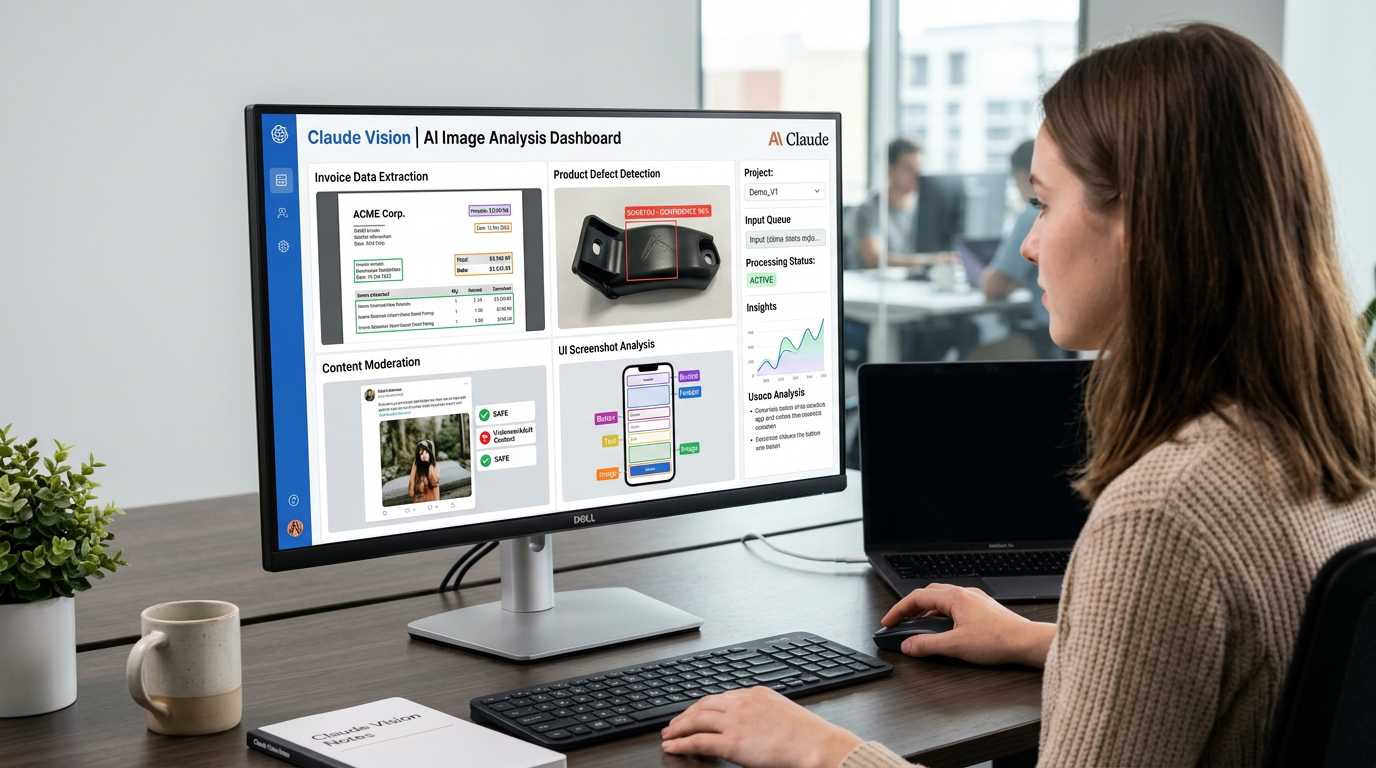
Common use cases include:
- Extracting structured data from documents, invoices, or receipts
- Generating product descriptions from e-commerce images
- Visual quality control and defect detection
- Content moderation for user-uploaded images
- Converting screenshots into documentation or bug reports
The key advantage for automation builders is that you can pipe images through the same API you’re already using for text, creating unified workflows that handle both content types.
Who This Tutorial Is For
This guide is designed for:
- Developers building automation workflows with APIs
- No-code builders using tools like n8n, Make, or Zapier
- Tech-savvy beginners who want practical, working examples
You don’t need deep AI expertise, but basic familiarity with APIs, JSON, and either Python, JavaScript, or visual automation tools will help you follow along.
Claude Vision Setup Guide: Prerequisites and Requirements
For the latest official details, see Anthropic Console.
Before you can automate image analysis with Claude, you’ll need a few things in place.
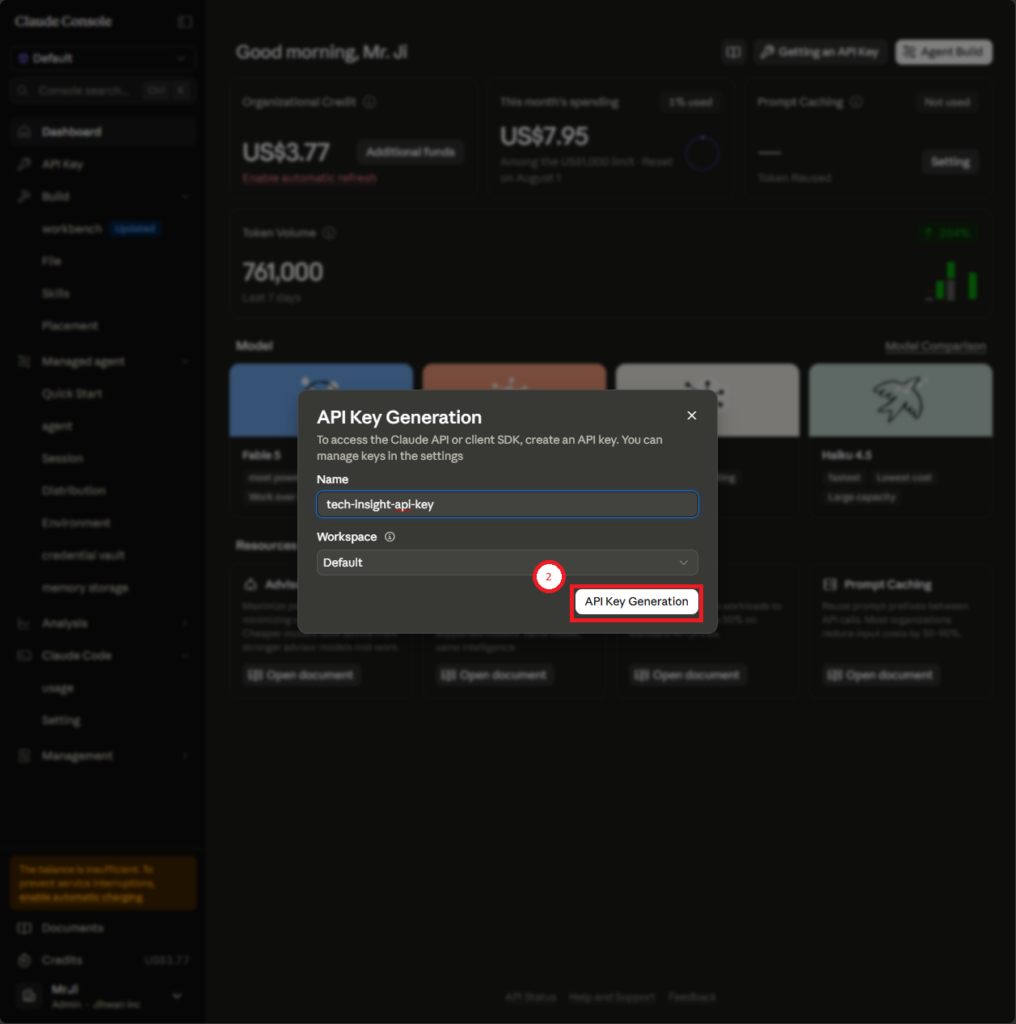
Getting Your Claude API Key
First, you need API access to Anthropic’s Claude platform. Visit the official Anthropic Console to create an account and generate an API key. Vision capabilities are available through the same API access as text-based Claude features.
Important: Before following specific setup steps, check the latest official documentation because authentication methods and account setup can change. Look for the current process for API key generation in Anthropic’s developer documentation.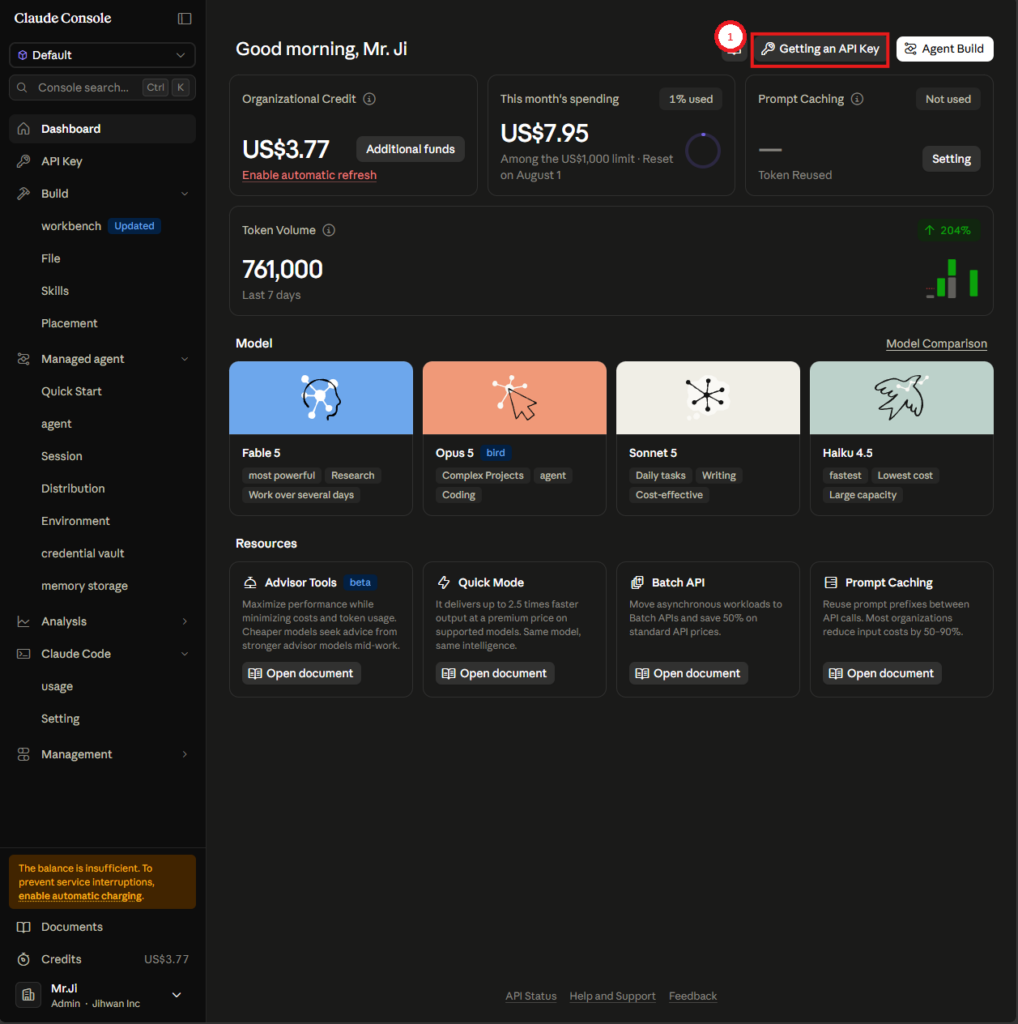
Choosing the Right Vision Model
Not all Claude models support vision. The Claude 3 family includes vision-capable models, but you’ll need to verify which specific model identifiers (like claude-3-opus or claude-3-sonnet) currently support image input by checking Anthropic’s models documentation.
Different models offer different trade-offs:
- Opus-tier models typically provide the most sophisticated image understanding but cost more
- Sonnet-tier models balance capability and cost for most use cases
- Haiku-tier models offer faster, more economical processing for simpler tasks
For your first experiments, start with a mid-tier model and adjust based on your accuracy and budget needs.
Cost and Token Considerations
Images consume API tokens differently than text. The exact calculation varies by image size and resolution, so consult Anthropic’s official pricing page for current details on how images are counted toward your usage.
Cost optimization tip: Start with lower-resolution images during development to minimize token consumption while testing your prompts and workflows.
How to Send Images to Claude API
For the latest official details, see Anthropic’s API documentation.
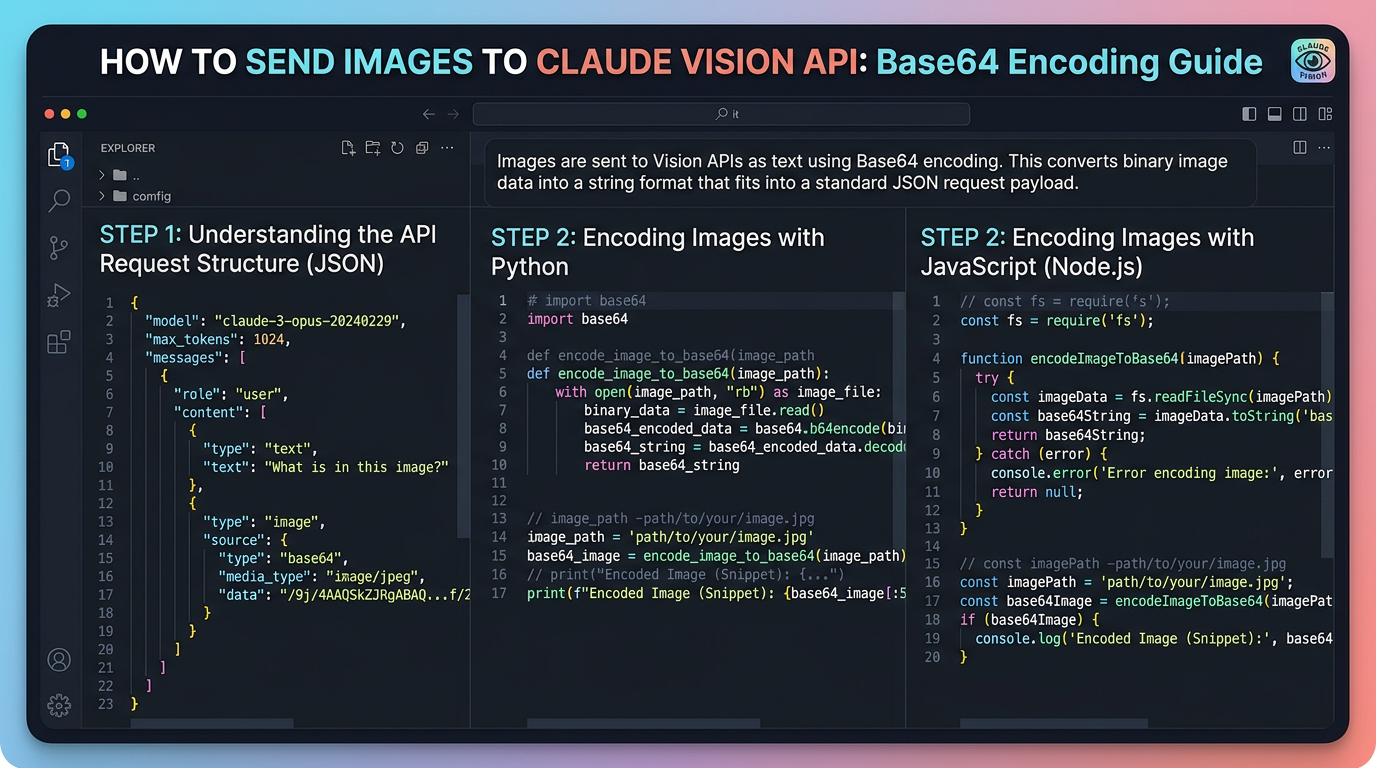
Claude’s vision API accepts images in two primary formats: base64-encoded data or image URLs. Both methods use the same messaging endpoint you’d use for text-only requests.
Image Format Requirements
Before sending images, verify the current supported formats in Anthropic’s API documentation. Common formats typically include JPEG, PNG, and WebP, but file size limits and resolution constraints apply.
Best practice: Resize large images before sending them to the API. Most use cases don’t require full-resolution photos, and smaller files reduce both token costs and processing time.
Basic Request Structure
A vision request looks similar to a text request, but the messages array includes image content alongside your text prompt. Here’s the conceptual structure:
{
  "model": "claude-3-sonnet-20240229",
  "max_tokens": 1024,
  "messages": [
    {
      "role": "user",
      "content": [
        {
          "type": "image",
          "source": {
            "type": "base64",
            "media_type": "image/jpeg",
            "data": "YOUR_BASE64_ENCODED_IMAGE_DATA"
          }
        },
        {
          "type": "text",
          "text": "What objects do you see in this image?"
        }
      ]
    }
  ]
}
Note: Model identifiers and request schemas may change. Always verify the exact JSON structure in Anthropic’s current API reference before implementing production code.
Using Base64 Encoding
To encode an image as base64, you’ll typically read the image file as binary data and convert it. Most programming languages have built-in utilities for this.
Python example concept:
import base64

with open("image.jpg", "rb") as image_file:
    encoded_string = base64.b64encode(image_file.read()).decode('utf-8')
JavaScript example concept:
const fs = require('fs');
const imageBuffer = fs.readFileSync('image.jpg');
const base64Image = imageBuffer.toString('base64');
Check the official SDK documentation for Python and TypeScript to see current implementation patterns and any helper methods for image handling.
Using Image URLs
If your images are already hosted online, you can reference them by URL instead of encoding them. This is often simpler for automation workflows that process images from webhooks or cloud storage.
The URL method follows a similar structure but uses a url source type instead of base64. Verify the exact format in Anthropic’s API reference.
Writing Effective Prompts for Image Understanding
Getting good results from Claude Vision depends heavily on how you structure your prompts.
Be Specific About What You Want
Instead of asking “Describe this image,” specify exactly what information you need:
- For data extraction: “Extract the total amount, date, and vendor name from this receipt.”
- For quality control: “Is there any visible damage or defect in this product photo? Answer yes or no, then explain.”
- For categorization: “What product category does this item belong to? Choose from: electronics, clothing, home goods, or other.”
Combine Text and Images Strategically
You can include multiple pieces of content in the same request. For example, send an image of a form along with text instructions about which fields to extract and what format to return the data in.
Request Structured Output
For automation workflows, ask Claude to return data in JSON or another structured format:
“Extract the invoice details as JSON with these fields: invoice_number, date, total_amount, vendor_name. Return only valid JSON with no additional text.”
This makes it easier to parse responses programmatically and feed them into the next step of your workflow.
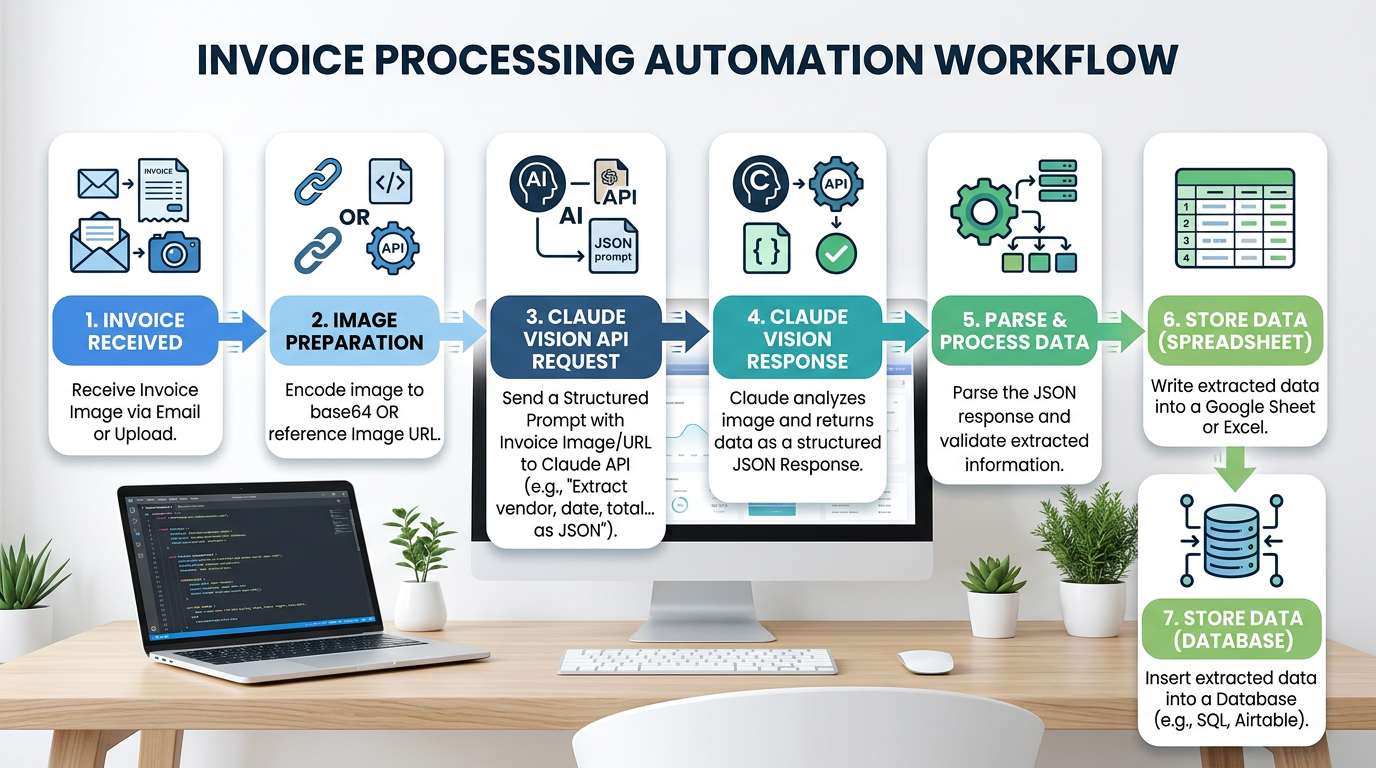
Practical Automation Example: Document Data Extraction
For the latest official details, see official Python and TypeScript SDKs.
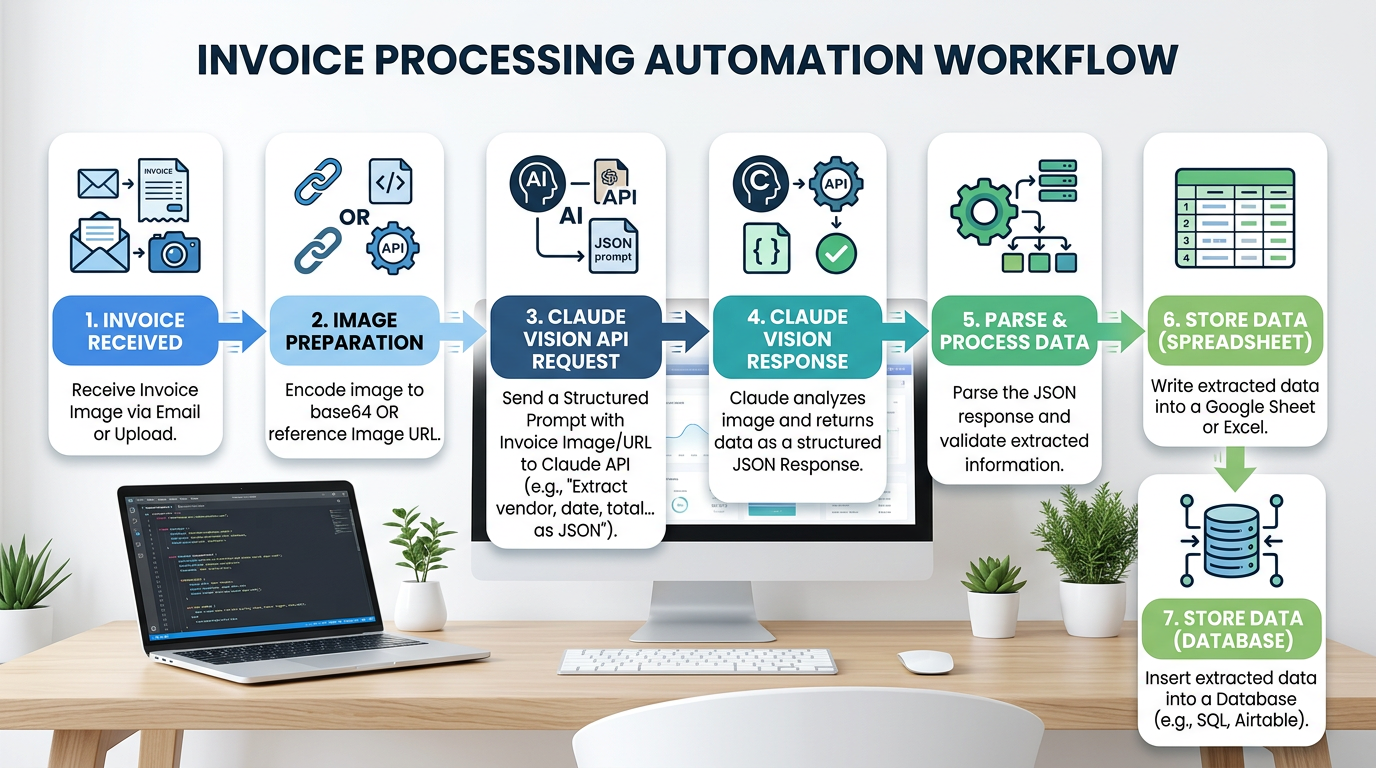
Let’s walk through a complete use case: automating invoice processing.
Workflow overview:
- Receive invoice image (from email attachment, folder monitor, or webhook)
- Encode image or get URL
- Send to Claude with extraction prompt
- Parse JSON response
- Write data to spreadsheet or database
Sample prompt for Claude:
“This is an invoice image. Extract the following information and return it as JSON: invoice_number, invoice_date, due_date, total_amount, vendor_name, vendor_address. If any field is not visible, use null. Return only valid JSON.”
Integration considerations:
If you’re using n8n or similar automation platforms, check whether they offer native Claude nodes that support vision. At the time of writing, native vision support in no-code tools varies; you may need to use HTTP Request nodes to call the Claude API directly. Consult the latest documentation for your automation platform and check Anthropic’s integration partners for current options.
For developers, the official Python and TypeScript SDKs provide the most straightforward implementation path. Install the latest version and follow the quickstart guides in the official repositories for current code examples.
Automating Image Analysis with Claude: More Use Cases
Product Image Analysis for E-commerce
Upload product photos and generate:
- Category assignments
- SEO-friendly descriptions
- Color and style attributes
- Suggested tags
Prompt example: “Describe this product photo in 2-3 sentences suitable for an e-commerce listing. Then list the dominant colors and suggest 5 product tags.”
Screenshot Documentation Assistant
Turn UI screenshots into structured documentation:
- Identify UI elements and their labels
- Describe user workflows shown in screenshots
- Generate bug report templates from error screenshots
Prompt example: “This is a screenshot of a software interface. List all visible buttons, labels, and form fields. Describe what the user appears to be doing.”
Visual Quality Control
Automate inspection workflows:
- Flag defects in manufacturing photos
- Check product presentation standards
- Verify packaging compliance
Prompt example: “Examine this product packaging photo. Does it meet these criteria: barcode visible, label aligned, no visible damage? Answer yes or no for each criterion and explain any issues.”
Common Mistakes and Troubleshooting
Authentication Errors
If you’re getting 401 or 403 errors, verify:
- Your API key is correct and active
- You’re including the key in the proper header format
- Your account has access to vision-capable models
Check Anthropic’s authentication documentation for the current header format and any required prefixes or schemes.
Image Format Issues
If Claude returns errors about invalid images:
- Verify the image format is supported (check current documentation)
- Ensure base64 encoding is correct with no extra whitespace
- Check that file size is within current limits
- Confirm the media_type field matches your actual image format
Unexpected Responses
If Claude’s analysis isn’t accurate:
- Make your prompt more specific about what you need
- Try a higher-tier model for complex visual tasks
- Ensure image quality is sufficient (not too small, blurry, or dark)
- Test with a simpler, clearer image first to isolate prompt vs. image quality issues
Rate Limiting
If you hit rate limits during automation:
- Check current rate limits in Anthropic’s documentation
- Implement exponential backoff retry logic
- Consider batching requests or throttling your workflow
- Monitor your usage dashboard in the Anthropic Console
Anthropic’s error documentation provides specific error codes and recommended handling strategies—consult it when building production workflows.
Best Practices for Claude API Image Processing
Start small: Test with individual images before building batch pipelines.
Monitor costs: Track token usage closely during development. Image processing can consume tokens faster than text-only workflows.
Cache when possible: If you’re processing the same images repeatedly during development, cache results to avoid redundant API calls.
Handle errors gracefully: Build retry logic and fallback behavior into your automation. Network issues and rate limits are normal in production systems.
Version your prompts: As you refine prompts for better accuracy, keep a record of what works. Prompt engineering is iterative.
Check for updates: API capabilities, model names, and pricing can change. Set a reminder to review Anthropic’s changelog quarterly and update your workflows if needed.
Frequently Asked Questions
Can Claude Vision extract text from images (OCR)?
Yes, Claude can read and extract text from images, making it useful for document processing workflows. For best results, ensure text is clearly visible and not too small.
How do I handle multiple images in one request?
Check the current API documentation for multi-image support. The capability and any limits on image count per request may vary by model and API version.
What’s the accuracy compared to other vision models?
Claude 3’s vision capabilities are competitive with other leading AI vision models, but accuracy depends on image quality, task complexity, and prompt clarity. Test with your specific use case to evaluate performance.
Can I use Claude Vision without coding?
Potentially, depending on your automation platform. Tools like n8n, Make, and Zapier may offer native support or allow you to use HTTP requests to call the Claude API. Verify current integration options with your preferred tool.
How do I optimize costs for large-scale automation?
Resize images before sending, use the appropriate model tier for your accuracy needs, implement caching for repeated analyses, and monitor token consumption closely through your usage dashboard.
Next Steps: Building Your First Claude Vision Workflow
You now have the foundation to start automating image analysis with Claude. Here’s how to move forward:
- Set up your API access: Visit the Anthropic Console and generate your API key
- Choose your implementation path: Decide whether to use Python, JavaScript, or a no-code automation tool
- Start with a simple test: Send a single image with a basic prompt to confirm your setup works
- Build your first automation: Pick one use case from this tutorial and implement a complete workflow
- Iterate and refine: Test with real images from your use case and refine your prompts for accuracy
Remember to consult the latest official Anthropic documentation before implementing production workflows—API details, model capabilities, and pricing can evolve. The patterns and concepts in this beginner guide Claude Vision tutorial will remain valuable even as specific technical details change.
Start small, test thoroughly, and expand your automation as you gain confidence with Claude’s image understanding capabilities. Happy automating!
Enjoyed this article?